
Hosts setting up the room
Show Memories on a TV or projector
The Event screen is the view for the whole room. Put that window on the big display while keeping private host controls on your laptop or another authorized device.
On this page
Connect a laptop with HDMI
Duplicating a whole desktop also duplicates whatever you open next. Extending the display makes it easier to keep the answer key and host review controls off the TV.
- Connect the laptop to the TV or projector with a compatible HDMI cable or adapter. Select that HDMI input on the display.
- Sign in to Confrmly on the laptop, open the event’s Memories workspace and select Open Event screen.
- Move the Event screen into its own browser window.
- Use your computer’s extended-display setting and move that window onto the TV. On Windows, Windows key + P opens the display-mode menu; choose Extend.
- Select Full screen in the Event screen, or use the browser’s full-screen option if the device does not allow the page control.
- Keep the host workspace on the laptop screen. Run the game there while guests see only the Event screen.
TV browser or wireless casting
A compatible smart-TV browser can open the host-authorized Event screen. Browser support, sign-in and full-screen controls vary by device; complete your setup before guests arrive. The guest QR opens the guest experience, not the host’s TV controls.
If you use Chrome with a compatible Google Cast receiver, put the laptop and receiver on the same Wi-Fi network. Open the Event screen tab, use Chrome’s Cast menu and select the receiver. Choose the Event screen tab rather than a desktop containing private controls.
Wireless display and casting are features of your devices and browser. Memories does not add its own Cast button or guarantee every TV model.
Choose what the room sees
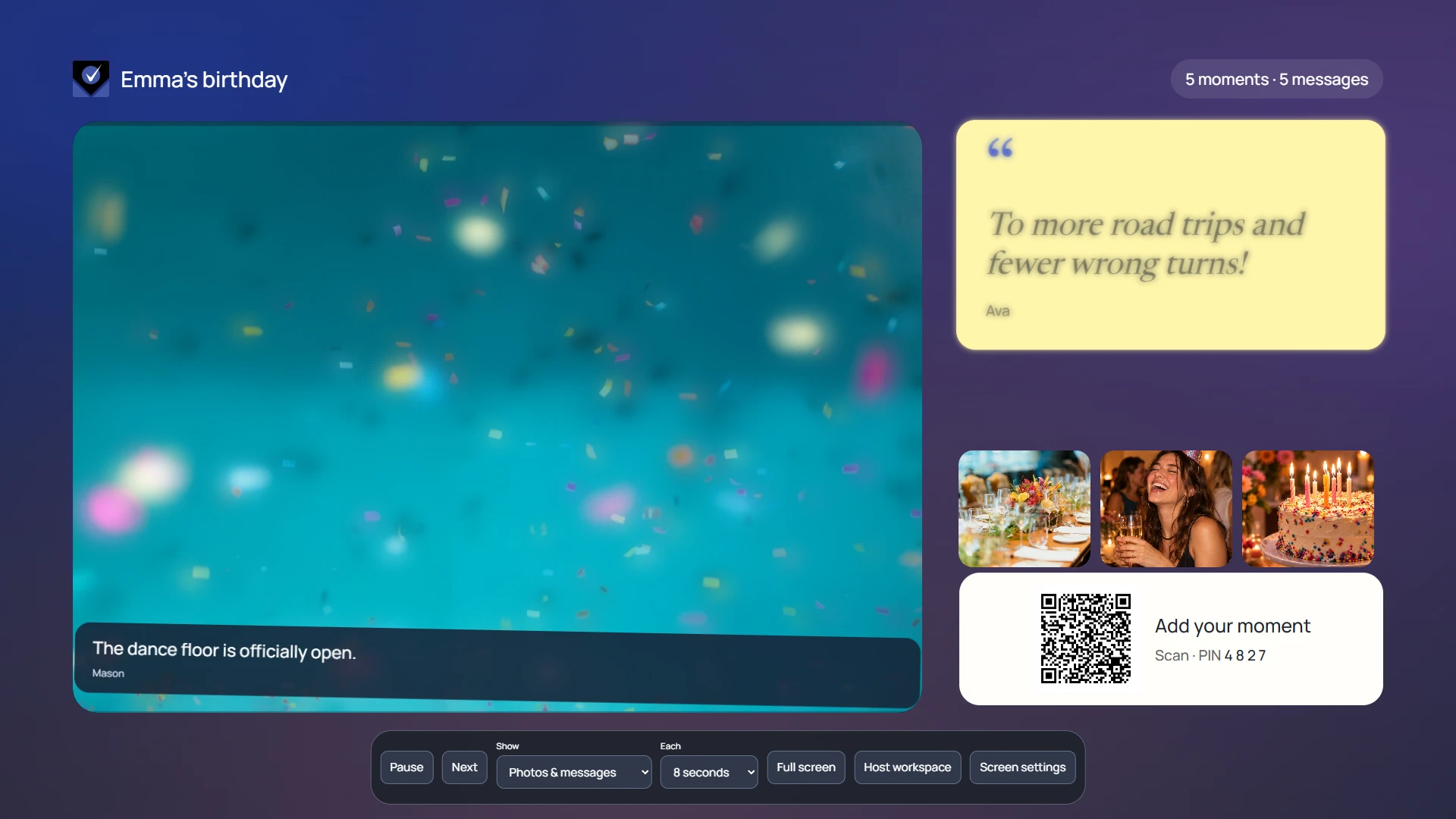
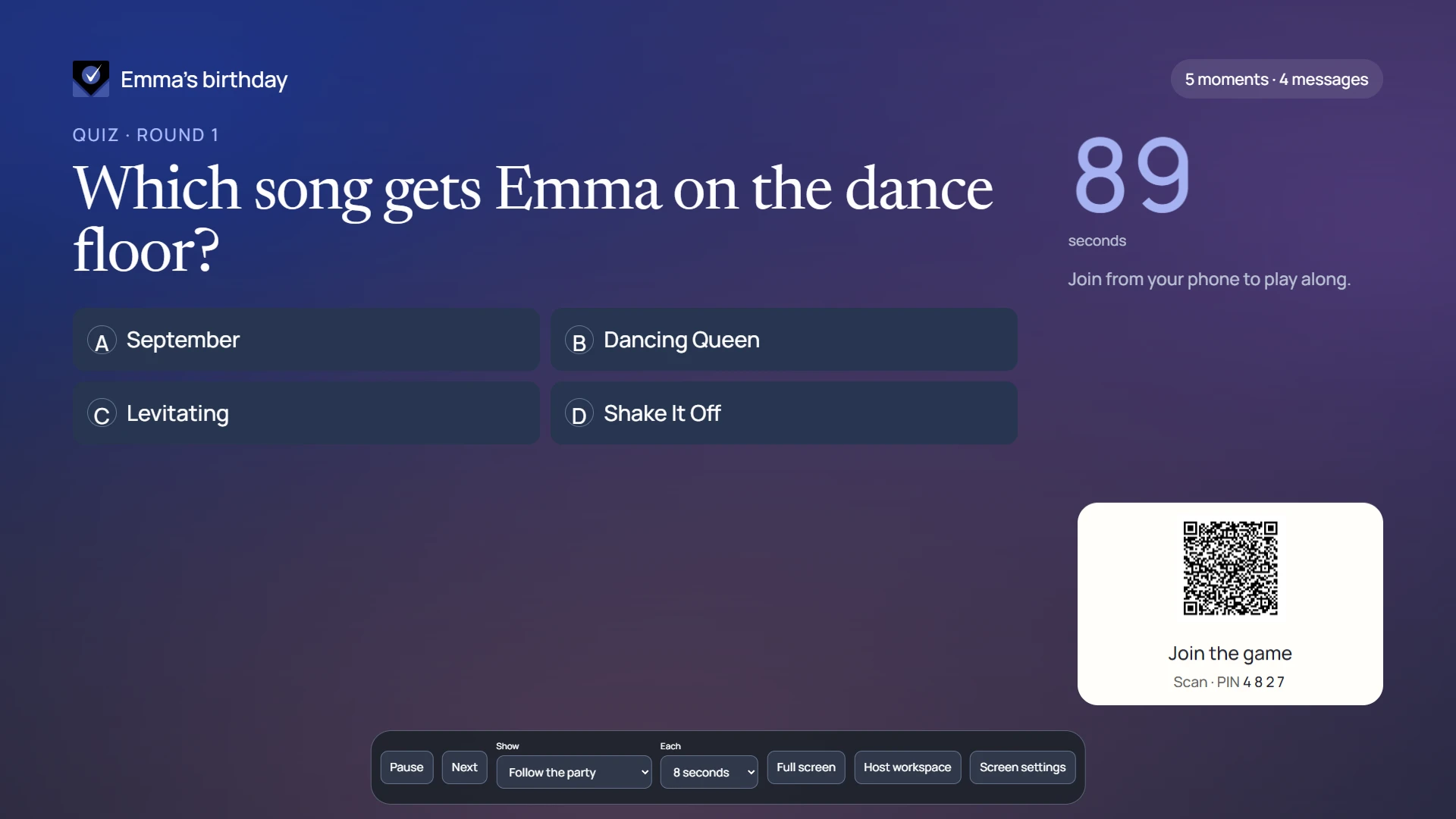
If a game is running but the TV still shows photos, first check whether Show is set to Photos & messages. Choose Follow the party to follow game changes.
| Show setting | Use it for |
|---|---|
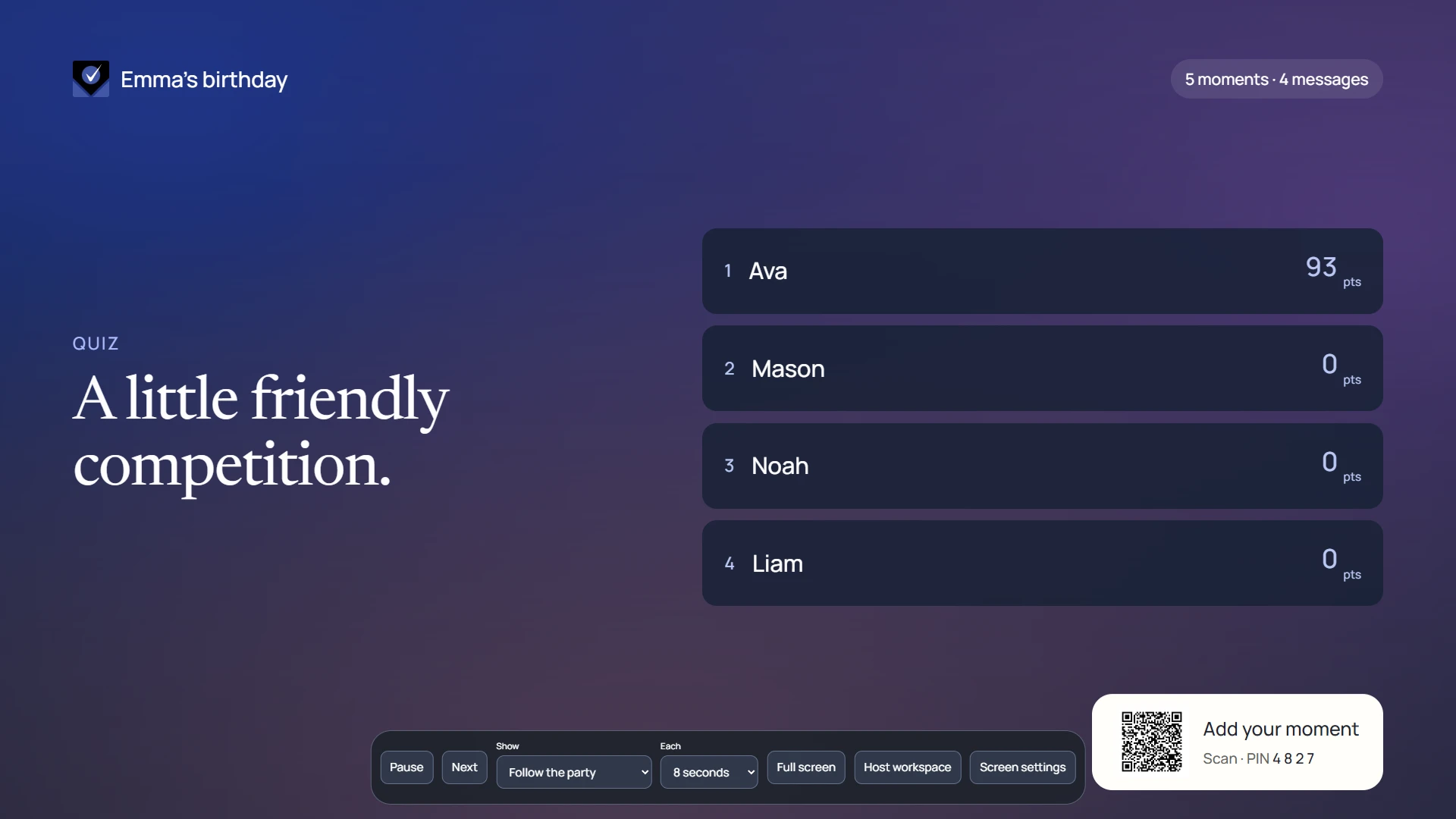
| Follow the party | Automatically follow game lobby, play, reveal, standings and the final podium, then normal event display. |
| Photos & messages | Keep the approved photo and guestbook slideshow on screen. |
| Game | The current game presentation. |
| Captions | The caption presentation, respecting Event screen approvals. |
| Leaderboard | The current revealed game standings. |
| Podium | The game’s leading players. |
| QR & lobby | A joining screen with the event QR. |
Control the slideshow
Pausing the screen does not pause the live game timer. Keep using the host game controls for game progression. The slideshow uses approved content; a private or pending entry is not automatically projected.
- Pause/Play stops or resumes the display’s slideshow behavior.
- Next advances the photo presentation.
- Each selects a 5, 8, 12, 20 or 30-second photo interval.
- Full screen uses the browser’s display mode where available.
- Move the pointer or use the keyboard to reveal controls when they fade away.
Choose the background and transitions
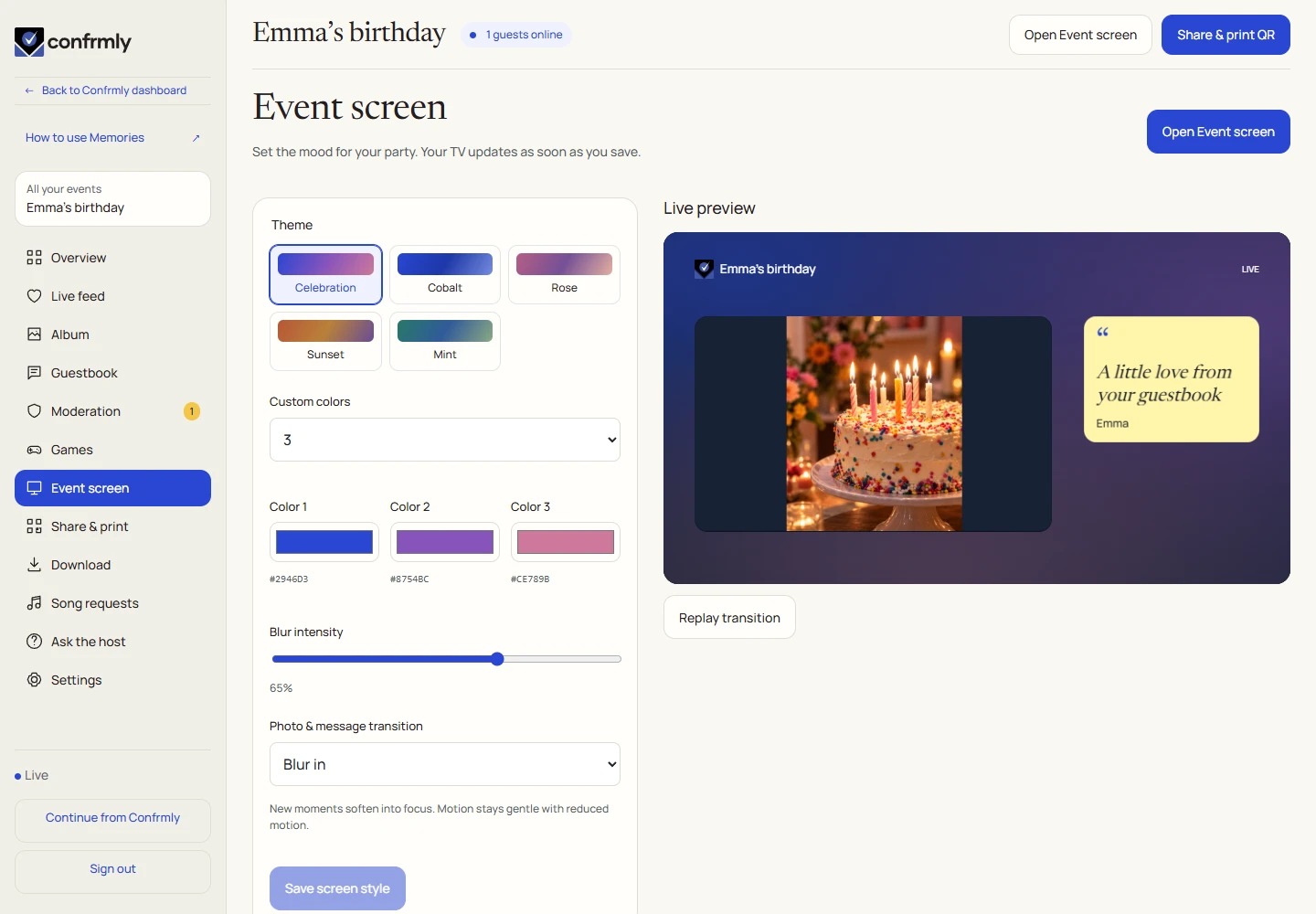
- Open Screen settings from the Event screen or host workspace.
- Choose a preset or set the supported background colors.
- Adjust blur and choose a supported transition. Replay the preview if you want to see the change.
- Save the settings, then check the actual Event screen from a few steps back.
A quick room check
- The TV shows the correct event and the QR scans from a guest phone.
- The laptop has power and an internet connection; sleep settings will not interrupt the party.
- At least one approved photo or message is available.
- Follow the party is selected if you want games to take over automatically.
- Text is readable from the back of the room and private host controls remain off the display.
If the screen is blank or out of date
- Check the TV input, cable and the computer’s selected display mode.
- If Memories shows no content, check the event and approve some photos or notes.
- If the browser cannot enter full screen, use its own full-screen control.
- If it is reconnecting, restore the connection and reopen the same event’s display.
- If wireless sharing fails, use the device maker’s setup instructions or connect the laptop by cable.
Screenshots show an example event with fictional names, answers and results. Your event’s content and scores will be different.