
Hosts inviting · Guests joining
Invite guests with a QR code or link
One guest link brings everyone into the same event. Share it directly or put its QR code where guests can scan, add photos and leave a message.
On this page
Create or copy the guest link
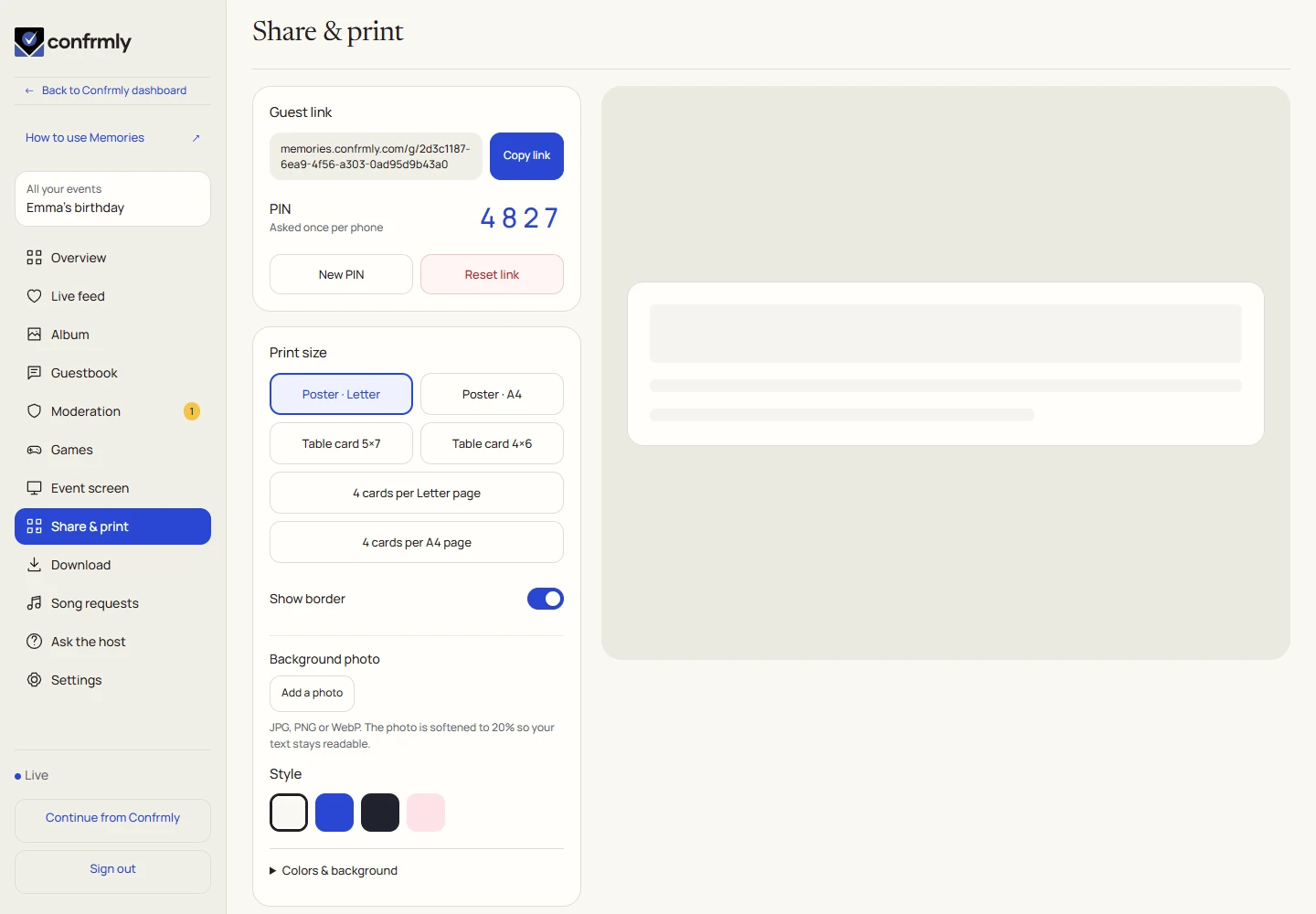
- Open the event’s Memories workspace and select Share & print.
- If there is no guest link yet, select Create guest link and choose whether to use a PIN.
- Select Copy link to copy the complete guest access link.
- Share that guest link with your event guests. Use the guest link instead of your host workspace address.
Join from a phone
Guests do not need to download an app or create a separate account. Access is remembered in that browser while its event session remains valid. A different phone, browser or reset guest link can require joining again.
If the code does not scan, try the host’s direct link, move closer, remove glare and make sure the whole QR code is visible.
- Open your phone’s camera and point it at the event’s QR code.
- Tap the browser link detected by the camera. You can also open the guest link the host sent you.
- Enter the event PIN if it is requested.
- Choose your event nickname and continue to the album.
Print a poster or table cards
Keep the QR dark against its light scan area. If the editor rejects low-contrast colors or text that will not fit, adjust the design until the preview is valid.
Put table cards where people can reach them and a larger poster near the entrance. The Event screen can also keep the joining QR visible.
- In Share & print, choose a print size: Letter or A4 poster, 5×7 or 4×6 card, or four cards on a Letter/A4 sheet.
- Choose a template and adjust the title, message and supported colors/background. Decide whether the PIN should appear on the print.
- Check the live preview for readable text and a complete QR code with clear space around it.
- Download PDF for printing or PNG when you need an image.
- Print at actual size and follow any cut guides for four-up layouts. Test one printed code with a phone before making all the copies.
Change a PIN or reset guest access
A reset is an access change, not a cosmetic edit to the poster. Guests using the old QR or session may need to join again with the updated link and PIN. Changing a card’s title or background does not by itself reset the guest link.
- Open Share & print and choose the PIN or link-reset action you need.
- Read the reset confirmation. Updating guest access invalidates the old access and ends existing guest sessions.
- Confirm only when you are ready to share the updated access.
- Copy the new guest link and replace or reprint QR codes that refer to the old one. Send guests the new PIN when needed.
If a guest cannot join
- Check that they are using the current guest link for the right event.
- If the PIN changed, use the latest PIN provided by the host.
- If access was reset, rescan an updated QR rather than retrying an old browser tab.
- If the camera does not detect the QR, send the copied guest link directly.
- If the event is no longer available, ask the host to check its access and retention status.
Screenshots show an example event with fictional names, answers and results. Your event’s content and scores will be different.