
Guests and hosts
Add photos and explore the album
Album brings the event’s photos into one browsable collection. Add your own, open a favorite moment and return later to see what everyone else captured.
On this page
Add photos from your phone
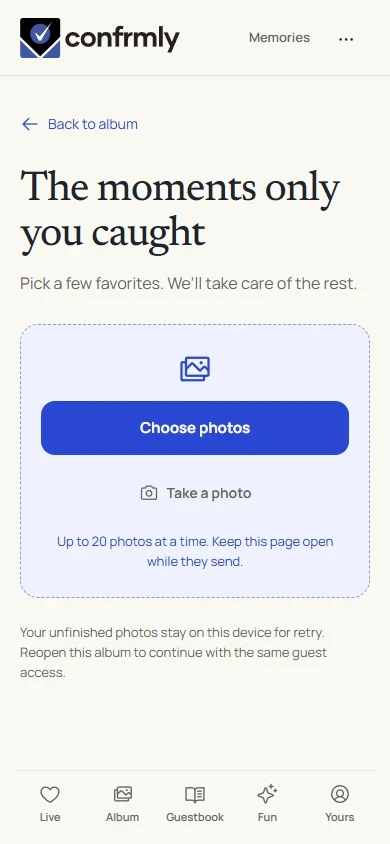
- Open the guest event and select Add photos.
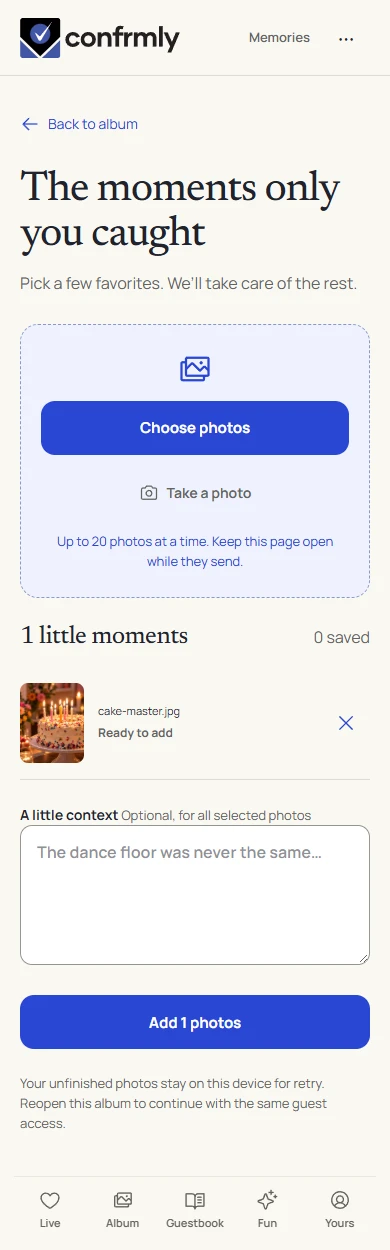
- Use Choose photos or Take a photo. Where your browser supports it, select more than one picture. Wait while the app prepares the selected files.
- Add an optional caption, then use the Add button showing the number of selected photos. A prepared photo is not shared until you take this step.
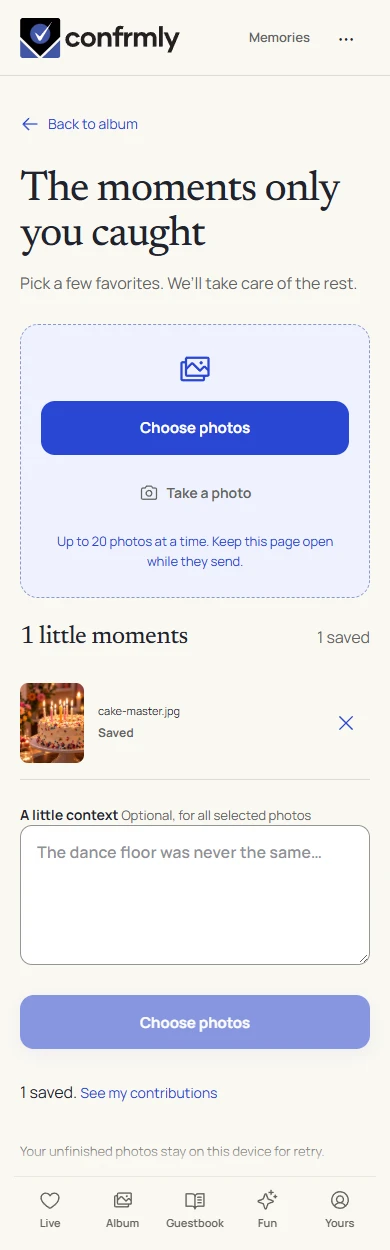
- Follow the upload progress. Keep the page open until the app confirms the upload or shows its saved state.
- If an upload fails, use its retry action when your connection improves. Check its existing status before selecting the same file again.
Browse the photo collection
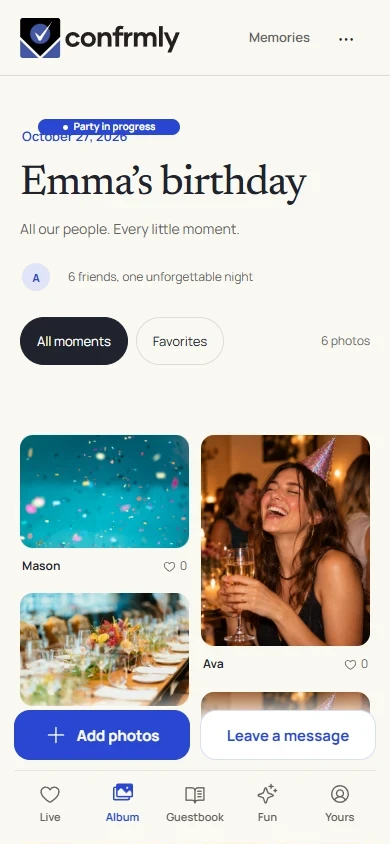
Favorites highlights popular photos using the event’s reaction counts. It is not a private list of photos you have bookmarked. New items may wait behind the new-moments button while you browse.
- Open Album in the bottom navigation.
- Choose All to browse the available photos or Favorites to see photos with at least 10 reactions.
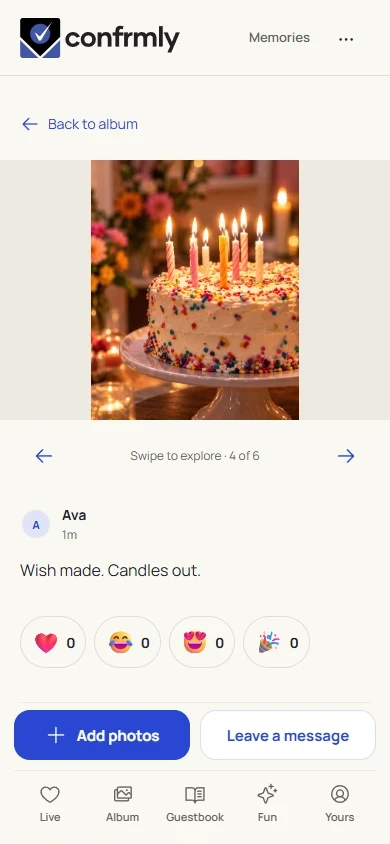
- Tap a photo to open its larger view and discussion.
- Use the previous and next controls to move through the photos, or return to Album.
Understand upload and approval status
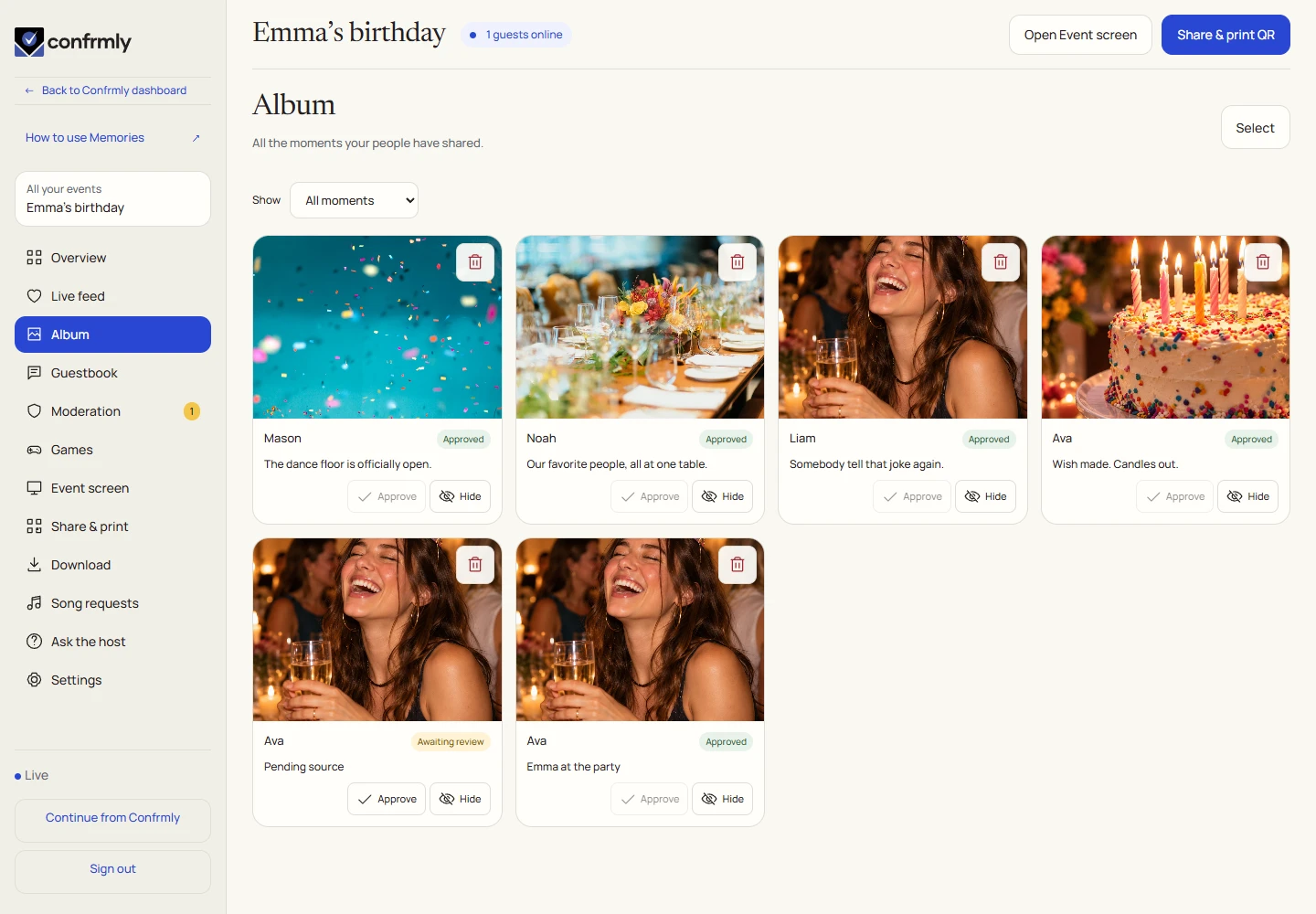
An upload must finish before it can be used as a shared photo. If approval is enabled, it also needs the host’s review before appearing to other guests or on the slideshow.
The host’s Album view includes moderation states and management actions. Guests see the content they are authorized to view. A hidden or deleted photo will no longer be a shared moment.
Download the memories as the host
One event includes up to 1,000 photos or 5 GB, whichever limit is reached first. Uploads normally remain open for 30 days after the event and retention lasts three calendar months after it. The dates shown on your event are the dates to use.
Private scavenger-hunt entries do not enter the normal album simply because they were submitted in a game. The host must separately publish eligible game photos, and any required album approval still applies.
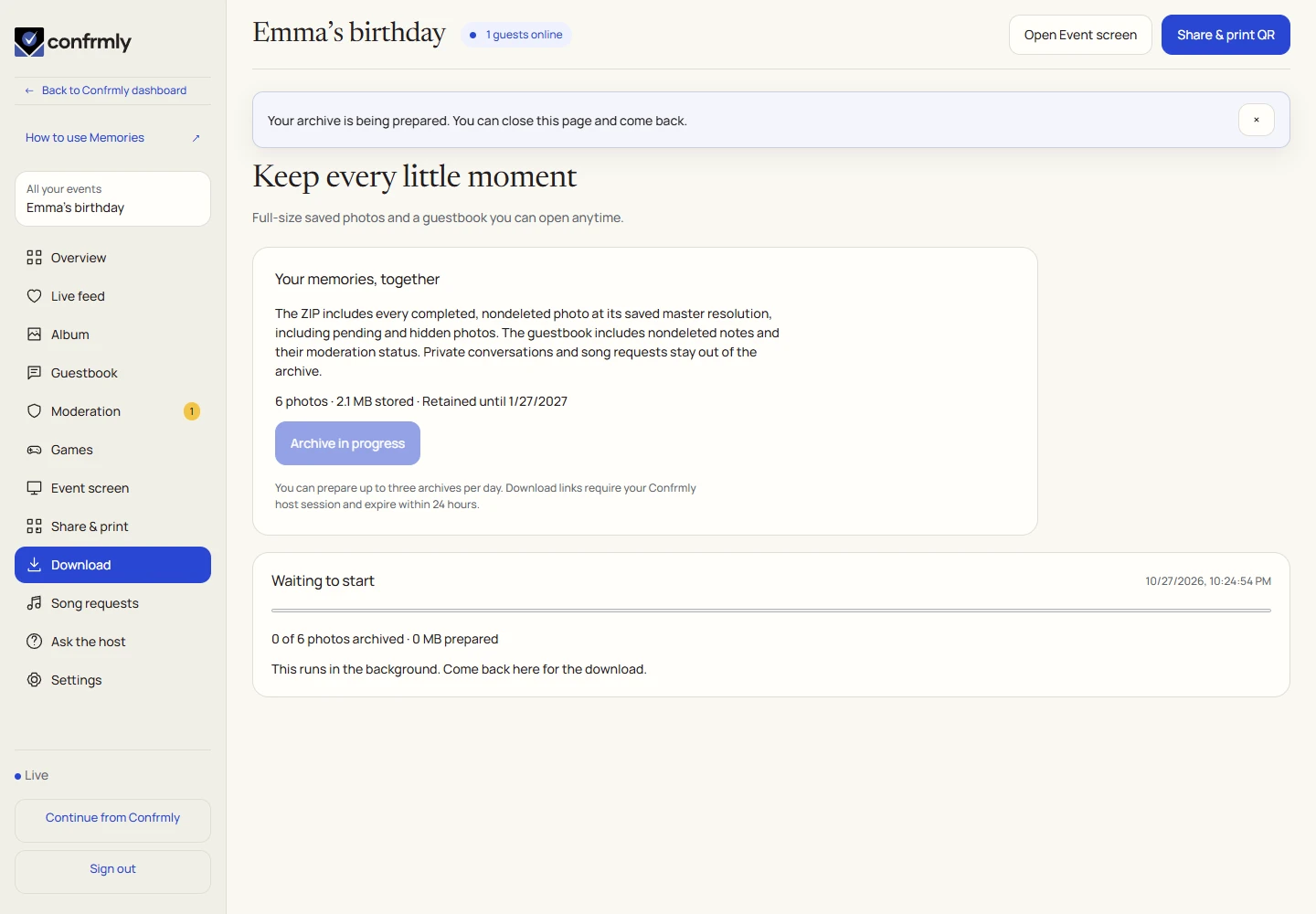
- Open Download from the host event workspace.
- Select Prepare ZIP archive and wait for its preparation status.
- Download the ready archive using the provided control, then save it somewhere you control.
- Check the event’s Uploads open until and Album kept until dates. Download before retention ends.
If a photo does not appear
- Check whether it is uploading, failed, pending approval or already saved.
- If the album is read-only or contributions are closed, guests can no longer add photos.
- Ask the host to check the remaining photo/storage allowance and moderation queue.
- A photo used privately in a game is not automatically a shared album photo.
Screenshots show an example event with fictional names, answers and results. Your event’s content and scores will be different.