
Host setup · Guest play
Photo Scavenger Hunt
Give guests a list of moments to photograph, then choose a winner for each task.
On this page
Before you start
- 3 to 10 short photo tasks.
- A winner mode: guest voting or the host’s selections.
- Enough album photo and storage allowance for the entries.
Create the game
- Choose Scavenger Hunt and write a title or introduction.
- Enter 3 to 10 tasks, such as The biggest smile, A cake moment and Your table.
- Choose voting or host-picked winners and set the submission/voting times.
- If you want to publish selected game photos later, enable Allow publishing scavenger photos. Save and make the game ready.
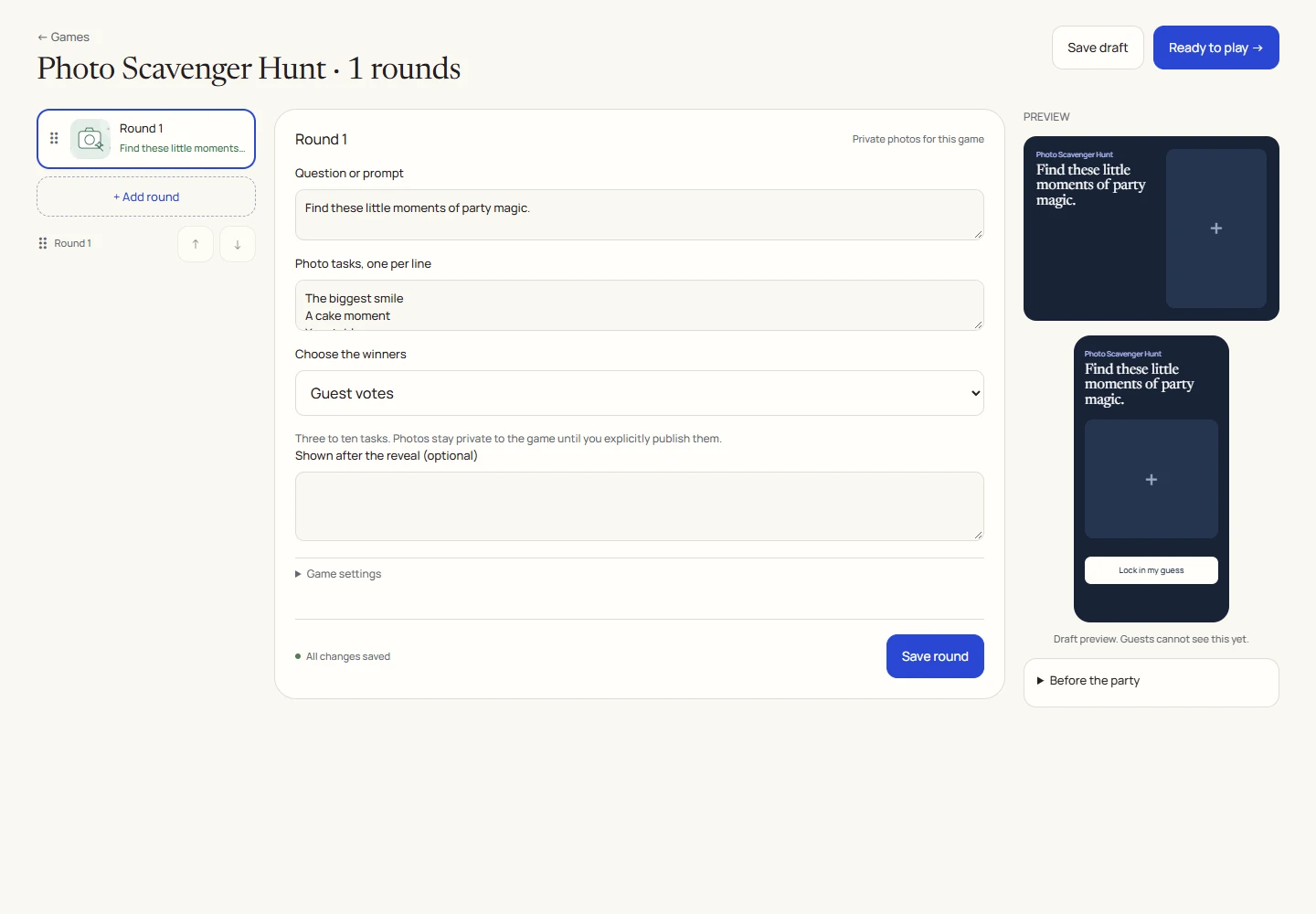
An example round
Play on your phone
- Join the hunt and open a task on your phone.
- Choose or take a photo and wait for its upload to finish. You can submit one photo for each task.
- When submissions close, vote on task entries if the host chose guest voting. In host-pick mode, wait while the host chooses.
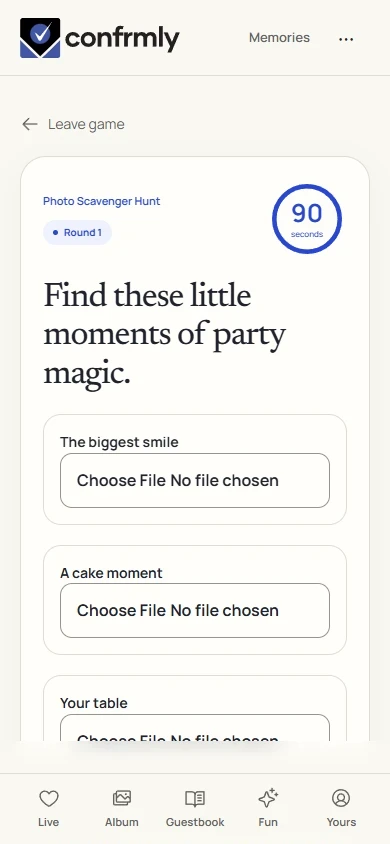
Run it as the host
- Select Close submissions & open voting to end collecting entries.
- In host-pick mode, choose a winner for every task that has a valid entry before revealing the round.
- Use the separate Event screen approval controls for any entries you want projected.
- After reveal, use Publish game photos to the album for selected completed entries when publication is enabled. This action still follows album moderation.
How voting works
- Guest votes belong to a specific task, with one accepted vote for that task.
- Host-pick mode closes guest voting and waits for the host’s selections.
- Game-entry visibility, TV approval and album publication are three separate steps.
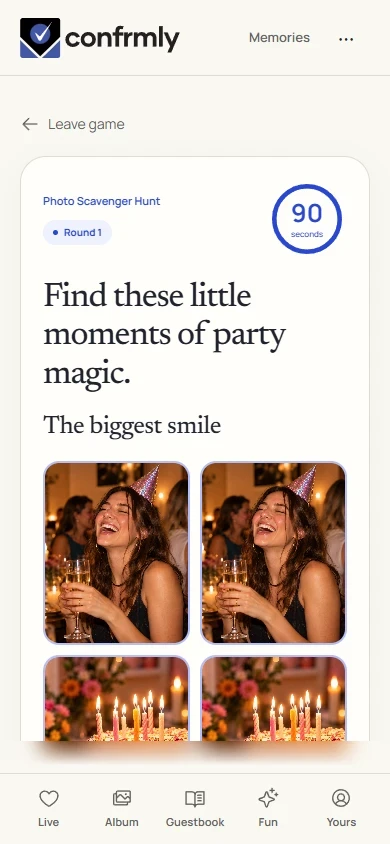
Reveal, scores and results
A winning entry earns 100 points for its task. A guest can win more than one task.
A vote tie uses the earliest accepted submission, then a stable internal ordering. A task with no votes has no vote-selected winner.
Private game uploads use the event’s photo/storage allocation. They do not automatically appear in the shared album or normal album export.
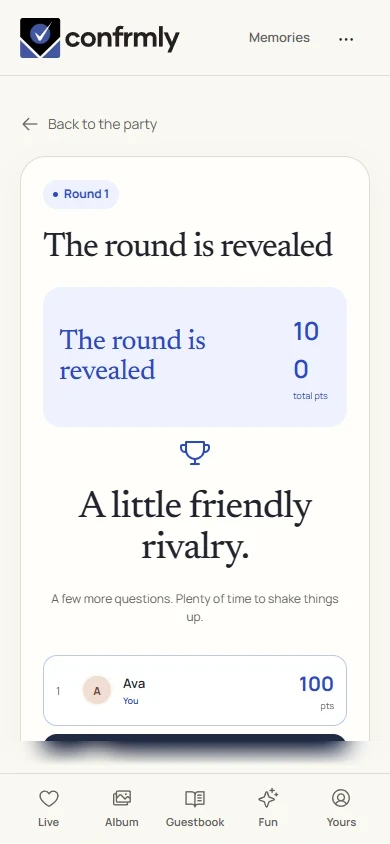
Show it to the room
Open the Event screen from the host workspace and choose Follow the party. The display follows the game’s lobby, active round, reveal and results. Keep the host’s private controls on a separate screen.
Use Reveal answer to show the round outcome, then Show results for the standings. Continue with Next round. Finish game ends a completed game and shows final standings.
If you get stuck
- Wait for upload confirmation. Selecting a file alone does not submit an entry.
- If reveal is waiting in host-pick mode, check that every task with valid photos has a selected winner.
- If a game photo is missing from Album, the host may not have published it, or it may still need normal album approval.
Screenshots show an example event with fictional names, answers and results. Your event’s content and scores will be different.