
Host setup · Guest play
Zoom Reveal
Start with a tiny detail, reveal more of the image and let guests work out what they are seeing.
On this page
Before you start
- 2 to 5 prepared frames of the same subject, ordered from a close crop to the full picture.
- Answer choices and a correct answer.
Create the game
- Select Create a game, then Zoom Reveal.
- Prepare the frames before uploading: first a tight detail, then wider views, with the full photo last. The photo picker accepts prepared images; it does not create all the crops for you.
- Upload the frames in reveal order. Write the question and answer choices, then select the correct answer.
- Save and preview the round before selecting Ready to play.
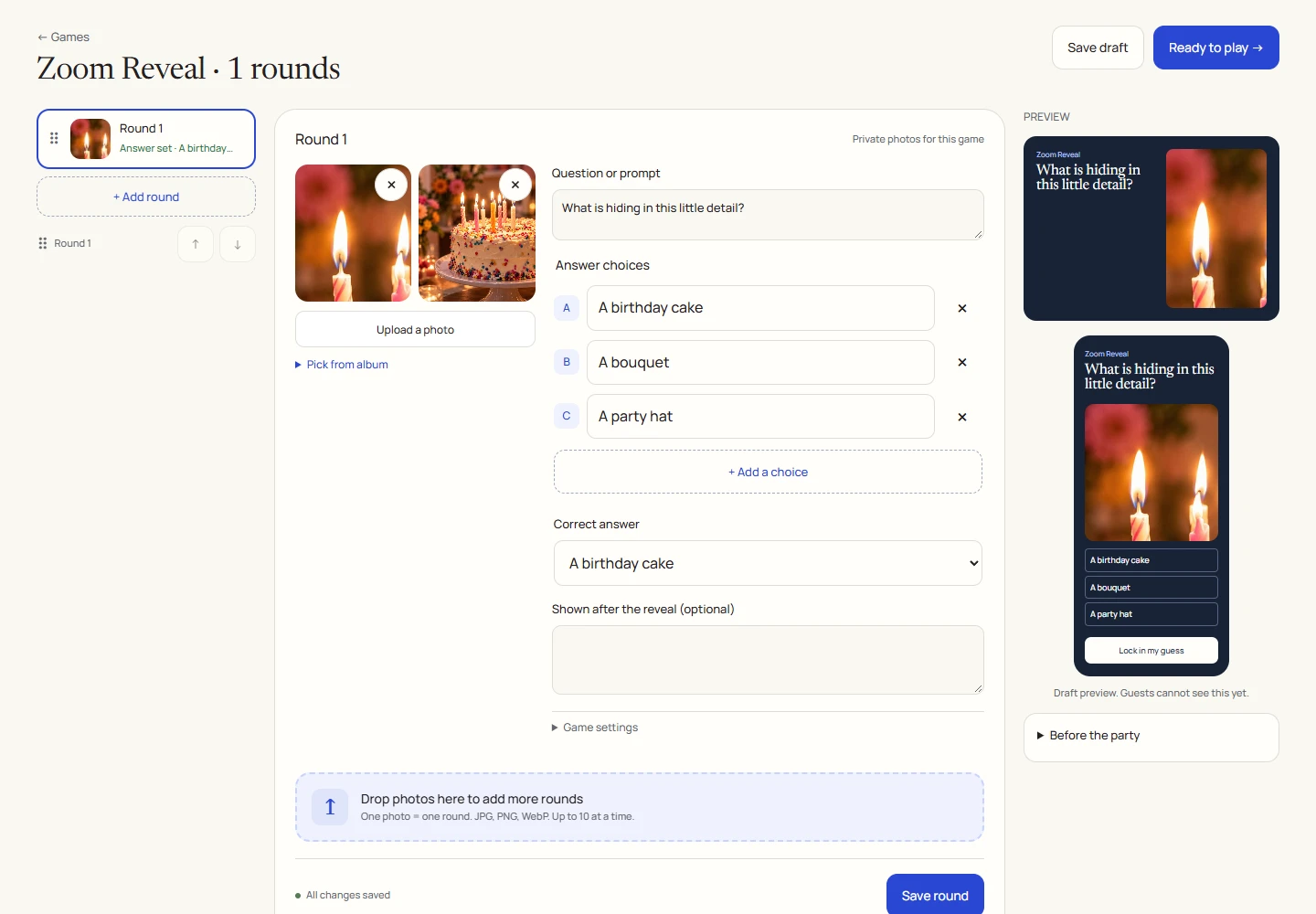
An example round
Play on your phone
- Join the game and inspect the frame currently shown.
- Choose what you think the detail belongs to, then lock in the answer.
- Keep watching for the full-image reveal.
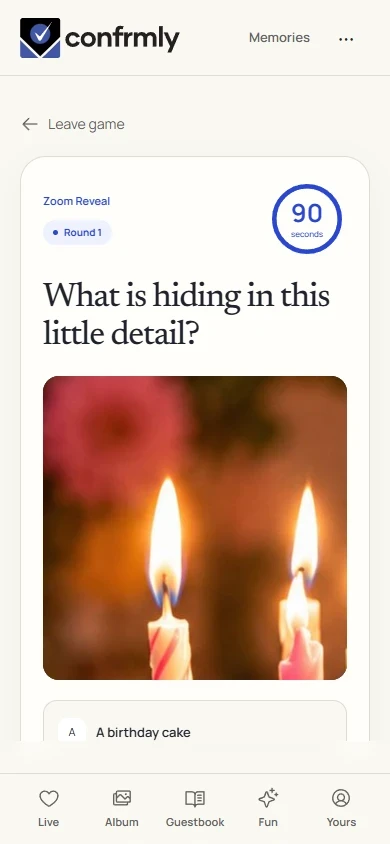
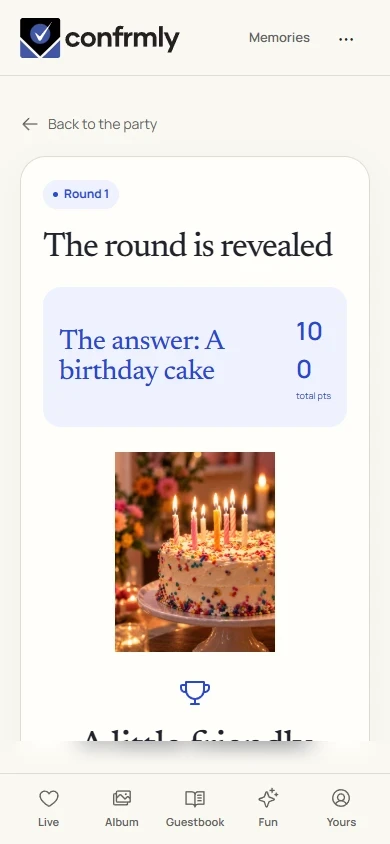
Reveal, scores and results
A correct choice earns 100 points. There is no extra early-guess or speed bonus.
Only the currently available frame is shown before reveal. The complete image and correct answer appear when the round is revealed.
Show it to the room
Open the Event screen from the host workspace and choose Follow the party. The display follows the game’s lobby, active round, reveal and results. Keep the host’s private controls on a separate screen.
Use Reveal answer to show the round outcome, then Show results for the standings. Continue with Next round. Finish game ends a completed game and shows final standings.
If you get stuck
- A single image is not enough: add at least two prepared frames.
- Use the same subject throughout the frame sequence. An unrelated final image makes the question confusing.
- If the full picture appears too early, check the uploaded frame order in the draft.
Screenshots show an example event with fictional names, answers and results. Your event’s content and scores will be different.