
Guest messages · Host review
Leave a message in the Guestbook
Leave a wish, a thank-you or a favorite memory. Your note becomes a message card in the event’s Guestbook and, once approved when required, in Live.
On this page
Write and post your note
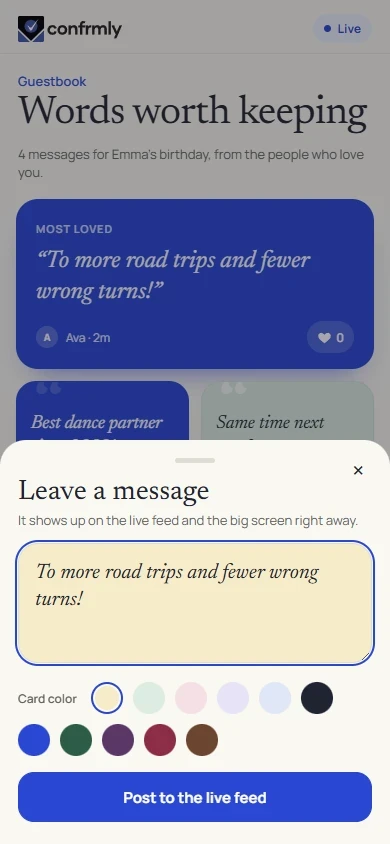
- Open the guest event and select Leave a message.
- Write your note in the message field. Keep it within the displayed limit.
- Choose a card color from the available swatches. The note preview uses that color.
- Select Post to the live feed. Wait for confirmation rather than posting it repeatedly.
See it in Guestbook and Live
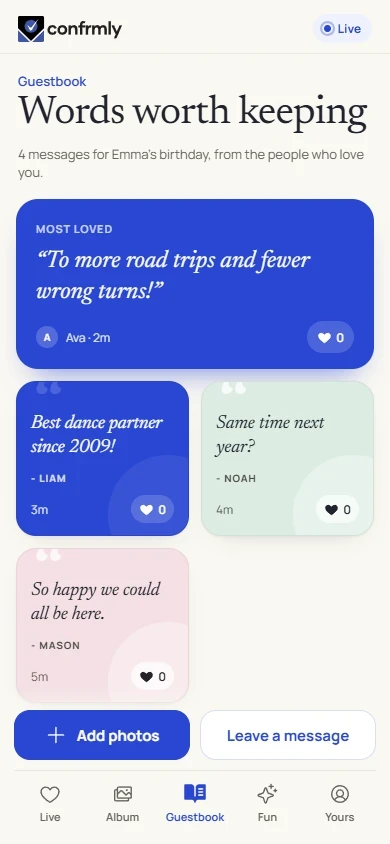
Open Guestbook to browse the note cards. Cards show the author’s event nickname and their message. People can leave hearts on notes; the Guestbook can feature its most-loved approved note.
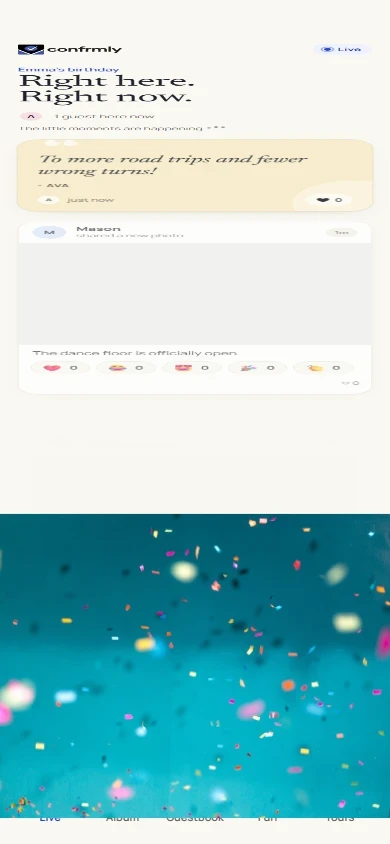
Live mixes approved notes with photos. After posting, the app brings you back to the shared event flow. If the host requires approval, your message is waiting for review before it is shown to everyone.
Review messages as the host
Approved notes can be used in Who Said It? and shown in the Event screen’s message presentation. Private Ask the host conversations are a different feature.
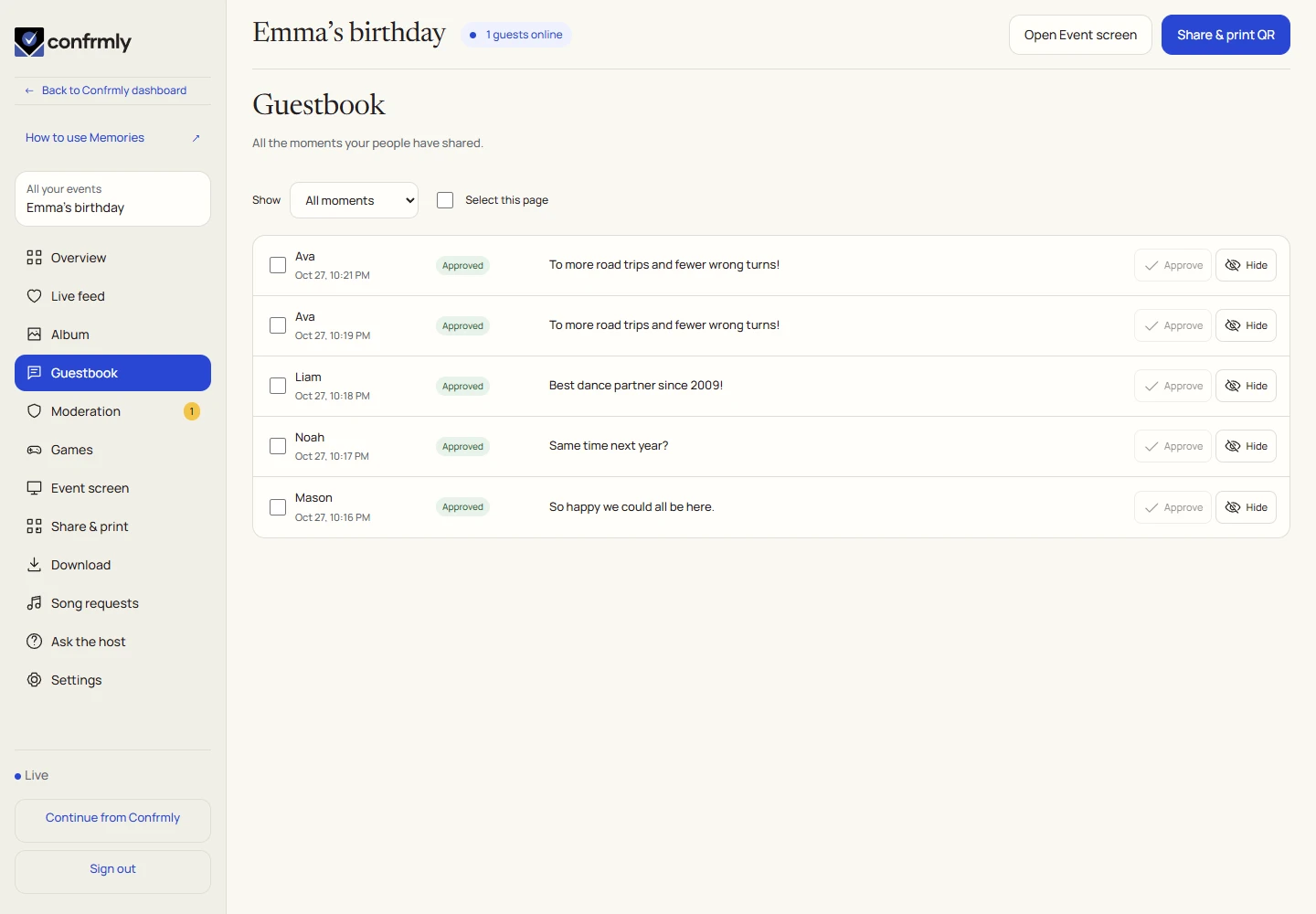
- Open Guestbook or Moderation in the host workspace.
- Review the note and its current state.
- Use Approve to make a pending note available, Hide to take it out of shared views or Delete when you intend to remove it.
- Check the Event screen if you are displaying messages in the room.
If you cannot post or find a note
- Check that the host enabled Guestbook and that contributions are still open.
- Look for pending approval before trying to post again.
- An expired or read-only album does not accept new messages.
- A hidden or deleted note is no longer shared event content.
Screenshots show an example event with fictional names, answers and results. Your event’s content and scores will be different.