
Host controls · Guest phone · TV
Run a game live, from lobby to results
Prepare the game before the party. During play, guests answer on their phones while you control the flow and the Event screen follows along.
On this page
Prepare and save the rounds
Making the game ready checks its required content. A saved draft is not an invitation to guests. If you need to revise a ready game before play, use Edit game to return to its draft.
- Open Games and create a game or copy a pack.
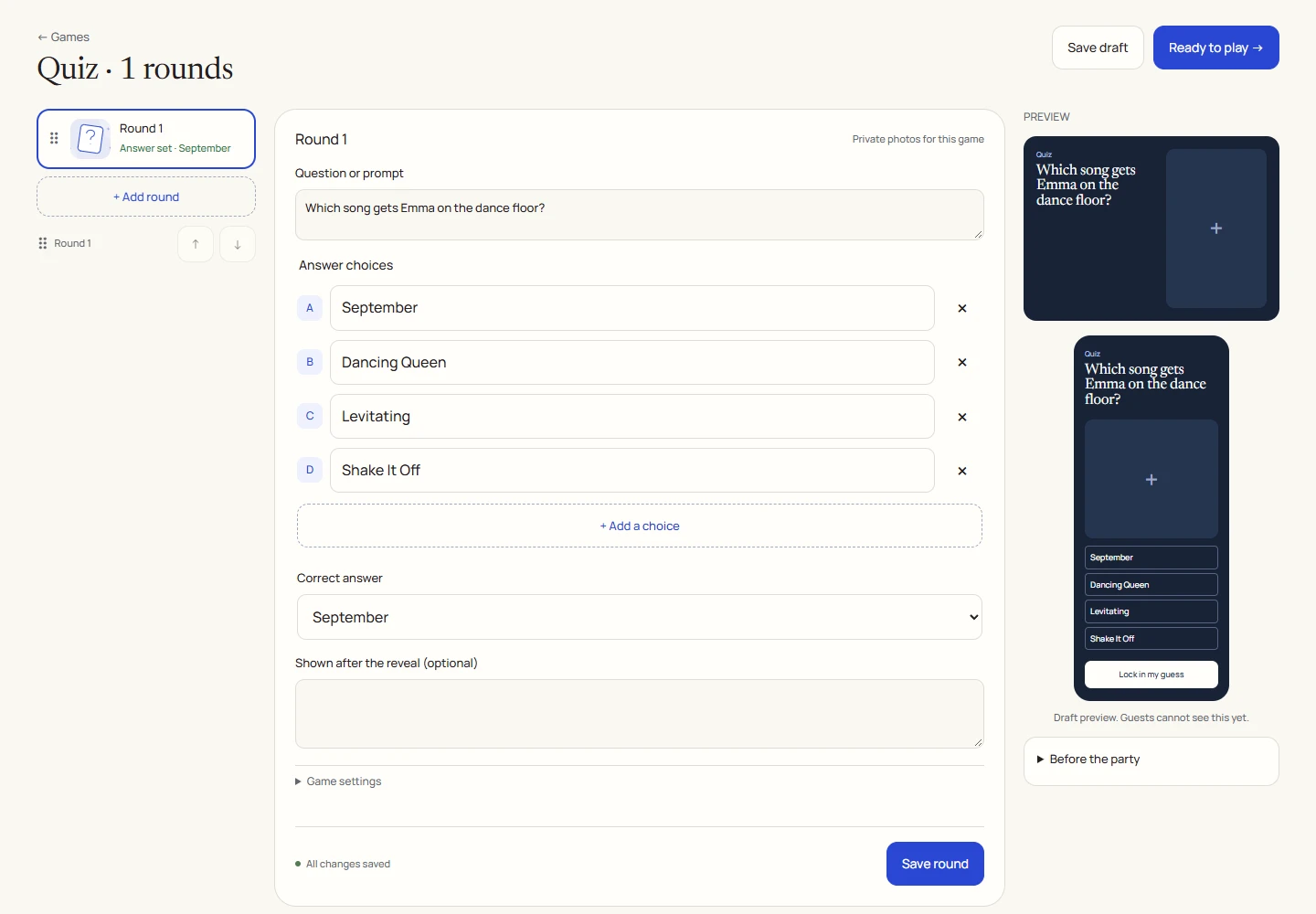
- Complete every round’s prompt, photos, choices and required answer key. Use Save round or Save draft after editing.
- Use the round list to review each saved round. Reorder with the drag control or up/down buttons while the game is still a draft.
- Set the answer, voting and lobby times that suit your group. Select Ready to play or Lock game & get ready.
Announce the game and bring guests in
- Select Announce game from the host controls. Only one game can be active in an album at a time.
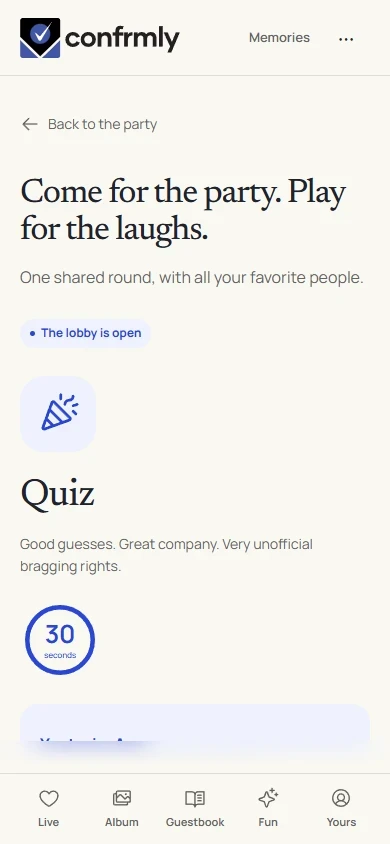
- Ask guests to open the invitation on Live or find the game under Fun.
- Guests accept the participation checkbox and select Join the round.
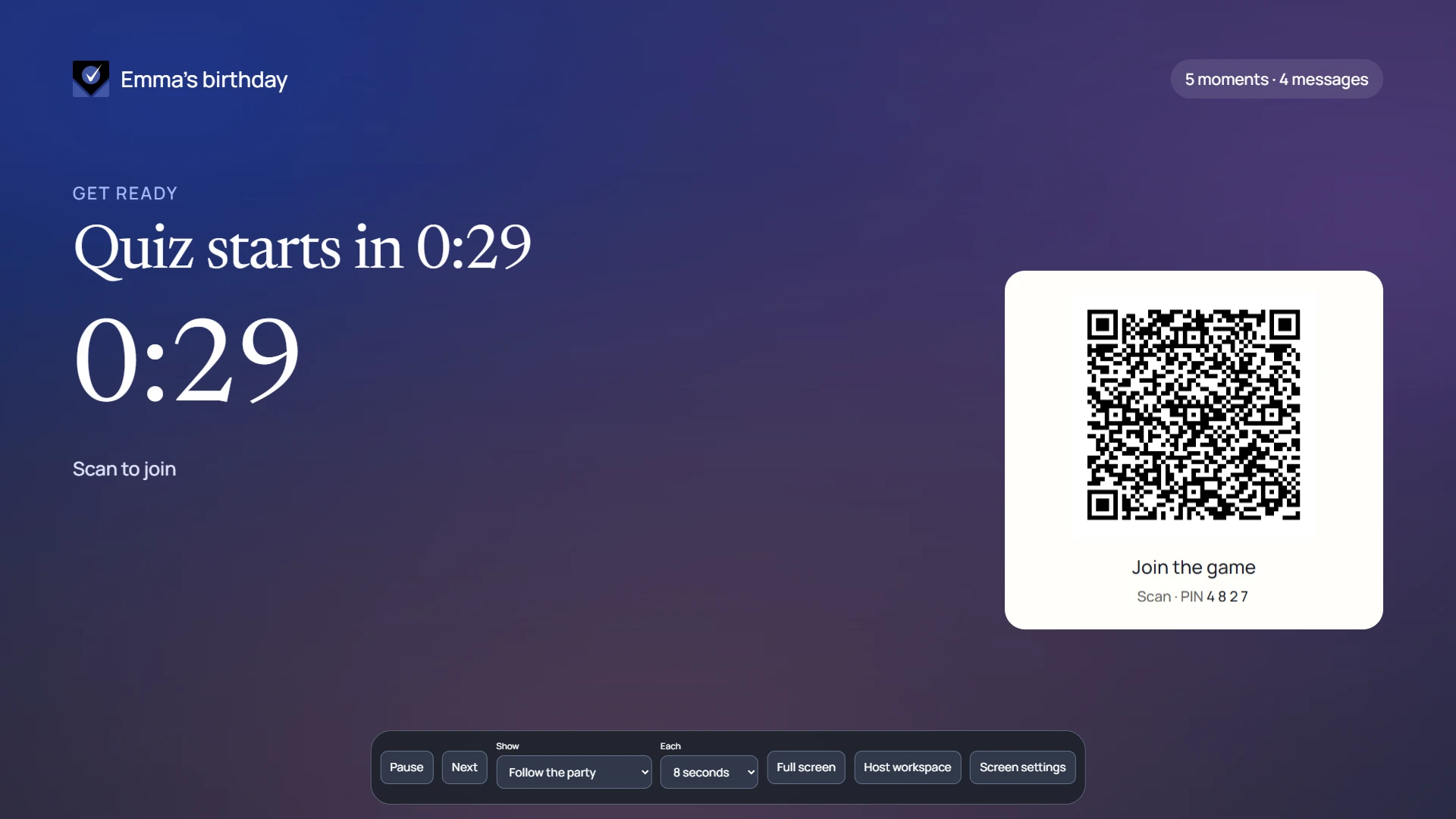
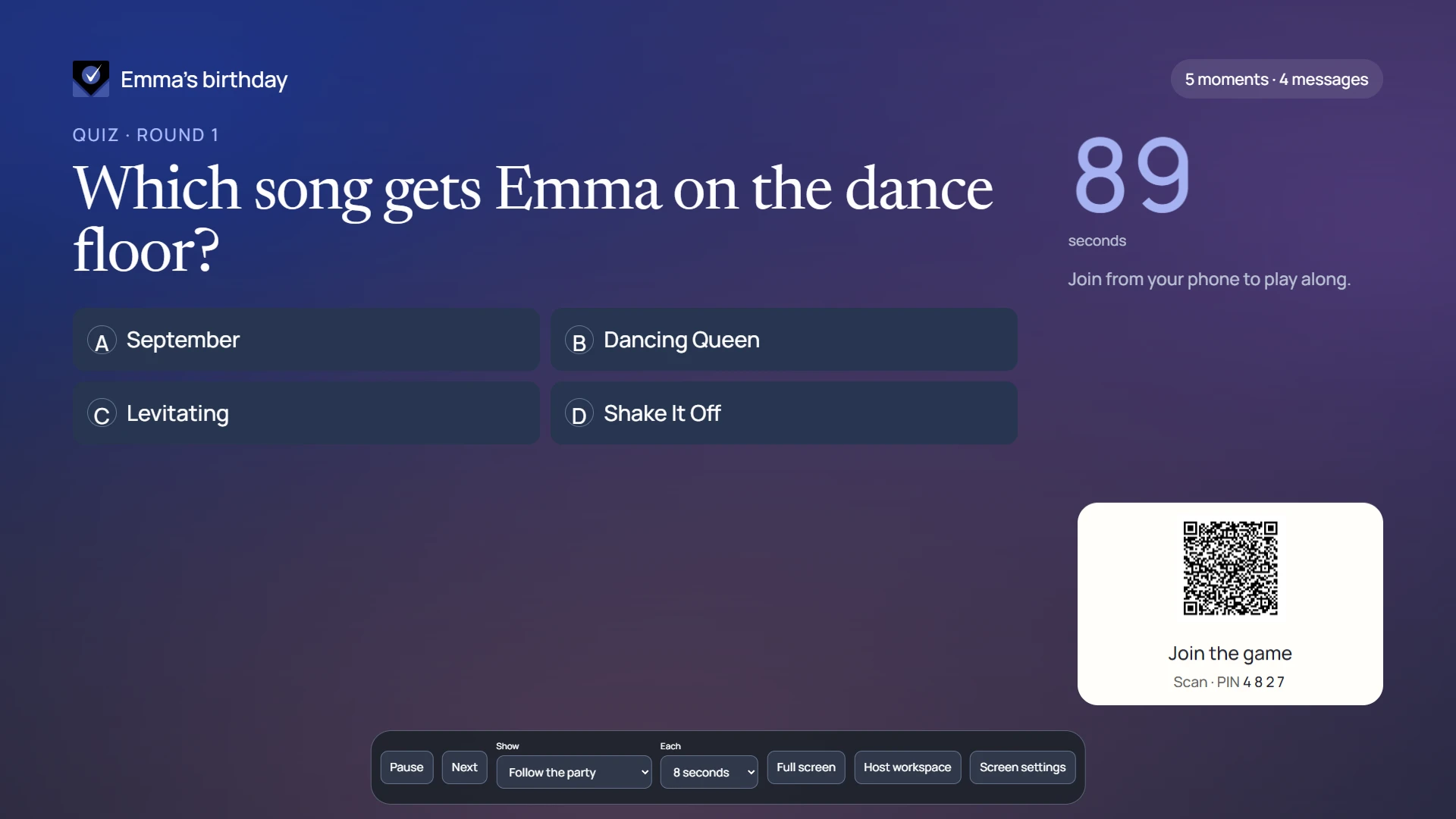
- Check the lobby and allow people time to join. Open the Event screen with Follow the party selected.
Open the first round
- Select Unlock first round when you are ready to begin.
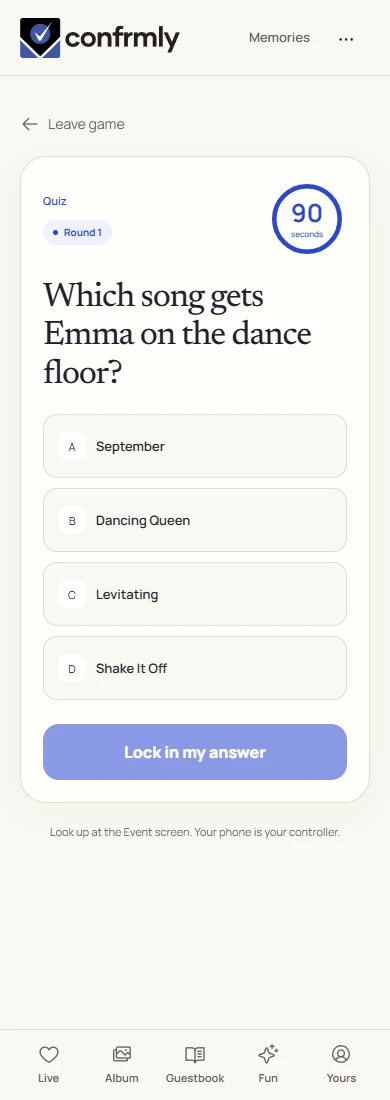
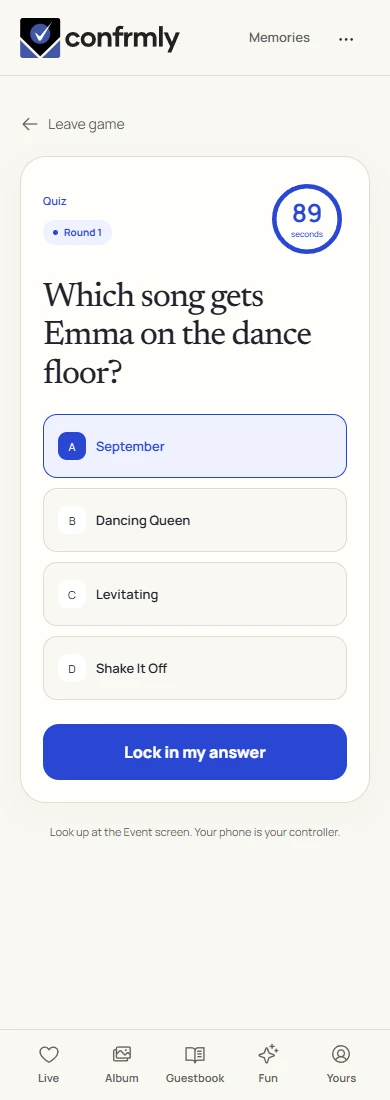
- Guests read the question and use their own phones to answer. They submit a choice, age, caption, photo or vote according to the game.
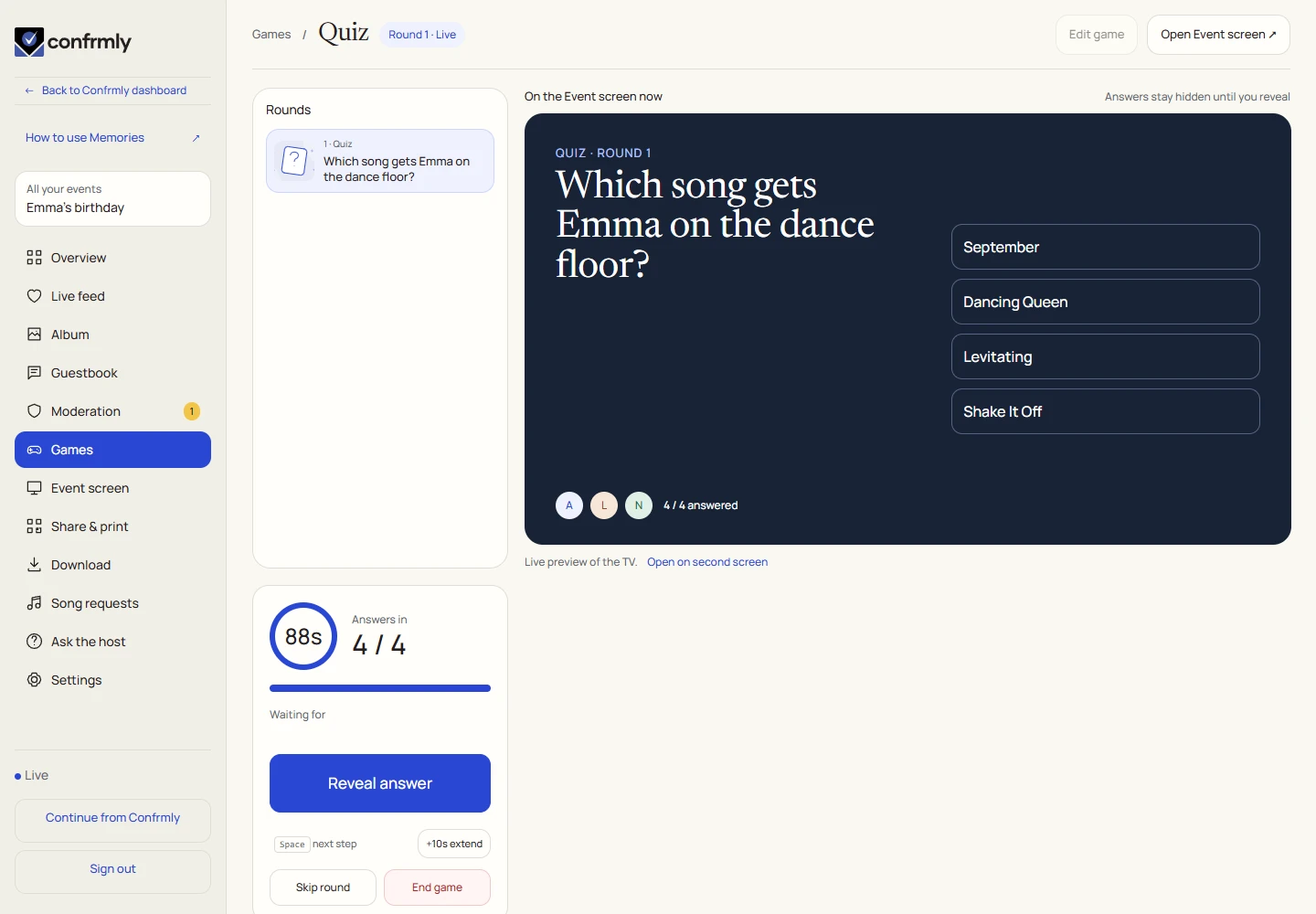
- Watch the Answers in counter and the countdown on your host screen.
- Allow the round to reach its deadline or move it forward with the appropriate control.
Timers and host controls
Timers use the game’s shared event time. Reopening a page does not restart the round. When a timed phase expires, the game can advance when its state is checked; you can also move supported stages forward manually.
Use the timer-extension control while a deadline is still active when the room needs more time. Skip round and End game early are separate host actions with confirmation. Use them only when you intend to move past a round or stop the game.
Pause on the Event screen pauses its presentation/slideshow behavior. It does not pause a game’s answer or voting deadline.
- Keep the host controls and Event screen separate so answer keys are not projected.
- The first accepted answer or vote in its scope is final.
- A new battle matchup or scavenger task has its own voting scope.
- Do not promise a late guest extra answer time. They join the current game phase where participation is still available.
For games with a second voting stage
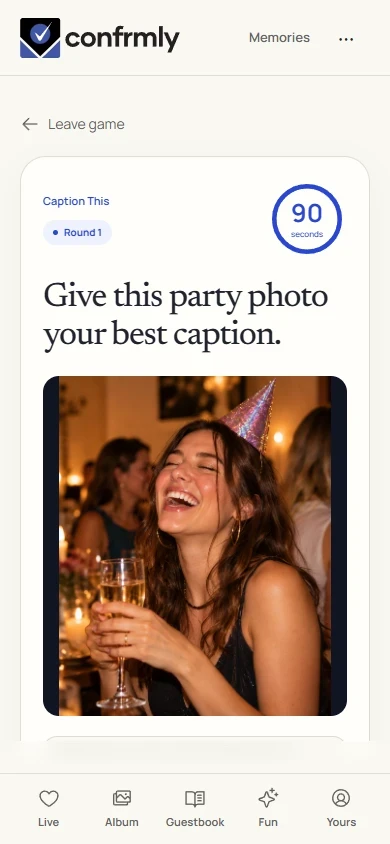
Caption This and Scavenger Hunt collect entries before voting. Select Close submissions & open voting to move from collecting entries to choosing winners.
Caption ballots are anonymous and do not permit self-votes. Scavenger Hunt can use guest voting or host-picked winners. In host-pick mode, select a winner for every task with valid entries before revealing.
Approve game content for the Event screen separately when required. That approval does not publish the game photos into the shared album.
Reveal the answer, then show results
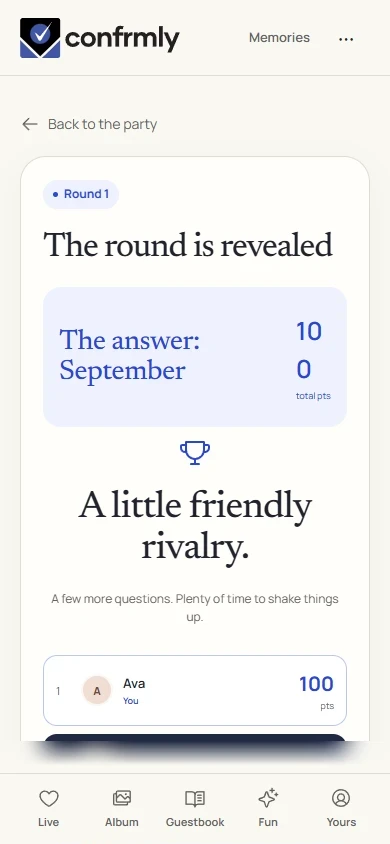
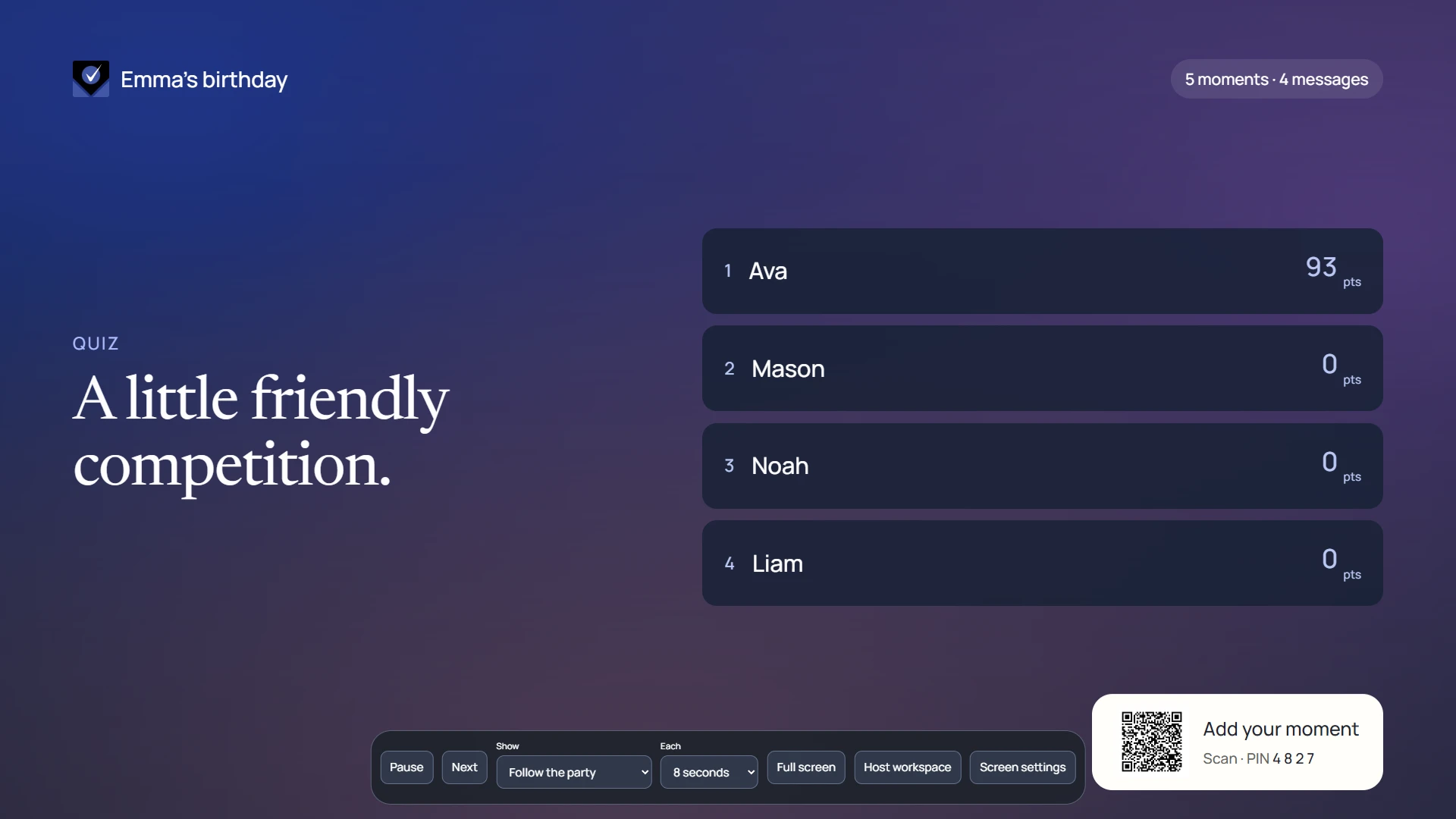
Answer reveal and the leaderboard are distinct stages. Scores come from revealed rounds, so unrevealed submissions do not silently add to the visible standings. Most Likely To is a vote without points by default; other mechanics have their own scoring rules.
- Select Reveal answer to settle the current round or battle matchup.
- Let guests see the correct choice, age, author or settled outcome.
- Select Show results for the leaderboard.
- Select Next round to continue. Repeat through the game.
Finish with the final standings
- Complete the round reveals. Finish game is available once the game’s rounds have been revealed.
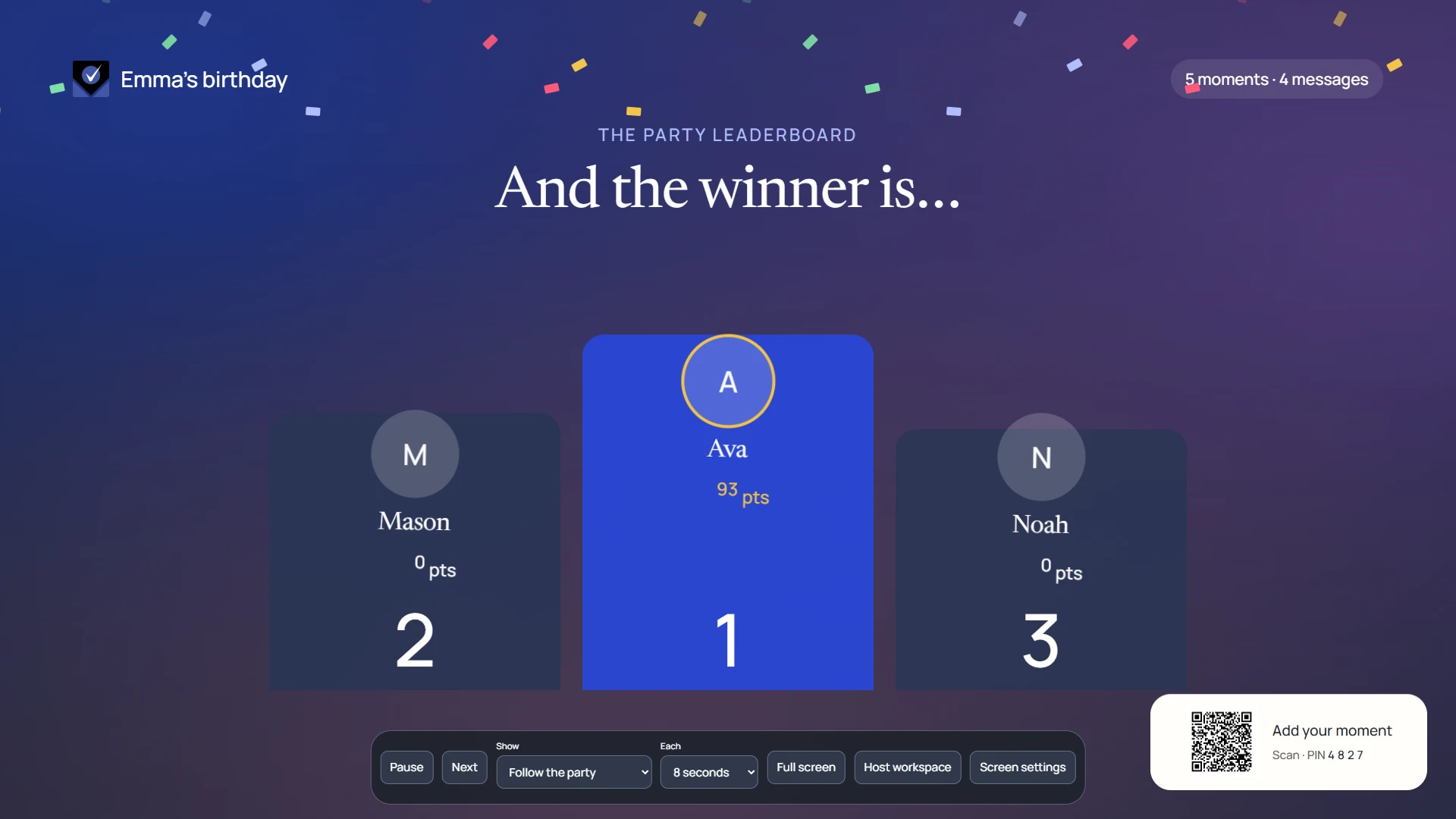
- Select Finish game to show the final standings.
- Allow the Event screen’s podium moment to finish, or choose a display mode when you want to return to photos and messages.
If someone loses connection or leaves
Reconnect using the same browser and event link. The current game phase and server-side results determine what the guest sees; a page reload does not create a fresh timer.
If the answer was already accepted, trying it again does not change that answer. If the deadline passed before acceptance, the round is closed.
Leaving the game uses the participation withdrawal action. A withdrawn participant cannot rejoin that same game. Browsing the event and joining a different game are separate actions.
Screenshots show an example event with fictional names, answers and results. Your event’s content and scores will be different.