Free Wedding Video Invitations with RSVP: A Practical Guide
Make a free wedding video invitation with online RSVP. Choose free designs, share your invitation link, and review guest replies and headcount.
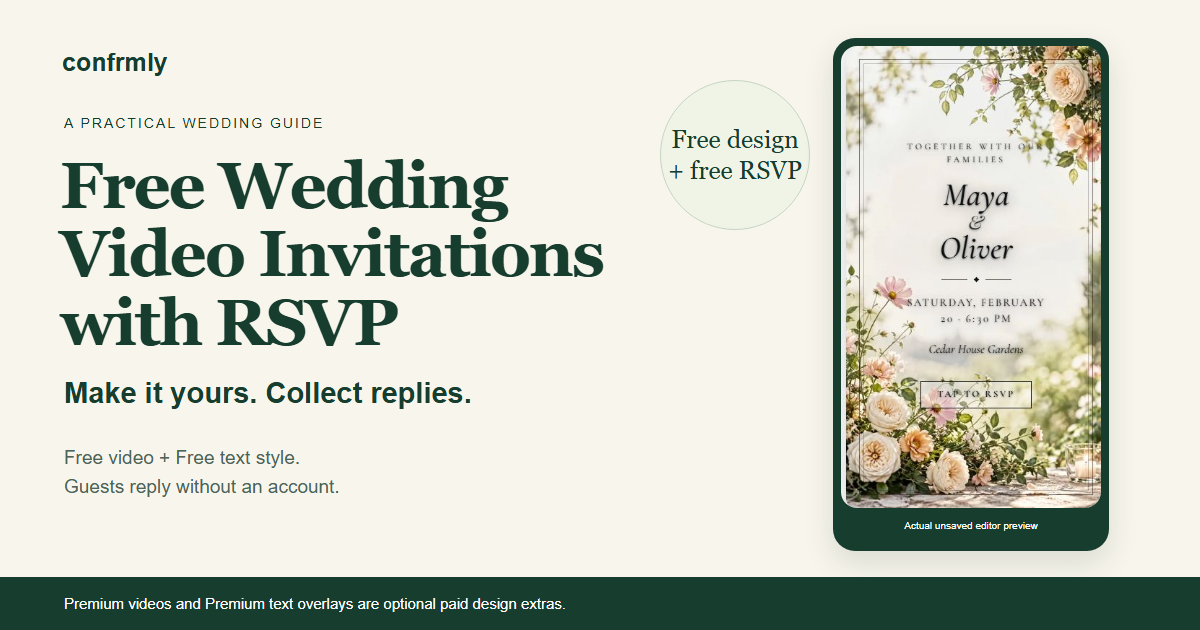
You can create a wedding video invitation and collect online RSVPs for free with Confrmly by choosing a Free video and a Free text style. Optional Premium videos and Premium text overlays are paid design choices. They are not required for the basic invitation, guest reply, or host dashboard workflow.
Start in the invitation catalog, then build around the information your guests need: whom the invitation includes, where to arrive, when the ceremony begins, and how to reply. This guide focuses on those wedding decisions, with real editor and demo screenshots. For the broader all-occasion setup, see the complete guide to free video invitations with RSVP.
Key Takeaways
- Keep both the video and text-style selections Free for a fully free design combination.
- Separate ceremony and reception instructions so guests know which event and time apply to them.
- Share the guest invitation page link, not only a video file or screenshot.
- Guests RSVP without accounts; the host registers with an email and a password.
- Use attending-person totals, including permitted plus ones, when planning headcount.
In this guide
- Prepare your wedding details
- Choose a free wedding design
- Check the preview and wording
- Publish and share the right link
- Understand the guest reply
- Turn replies into a wedding headcount
- Use these original wording examples
- Make your final check
Step 1: Prepare your wedding details
Decide what each invited person needs to know before choosing the animation. A beautiful wedding video invitation still needs clear practical information. Paperless Post's wedding invitation wording guide covers the host, couple's names, date, time, and reception information. Add clear response instructions for your own guests.
Have these details ready:
- Your names and preferred opening line.
- The wedding date and ceremony start time.
- The venue name and complete address.
- Reception timing and location, especially if they differ from the ceremony.
- The names of invited guests and any permitted plus-one arrangement.
- A reply-by date and a short RSVP instruction.
For two locations, “reception to follow” may not be enough. Give the reception venue and the time guests should arrive. For an out-of-town wedding, include the time zone where it could otherwise be unclear. These are wording decisions, not claims that the editor has separate itinerary or travel-planning tools.
Be explicit about whom the invitation covers. If you know an accompanying guest's name, use it in the message. If an additional guest is welcome but unnamed, say so. A general invitation link should not be left to explain your guest-list boundaries on its own.
Step 2: Choose a Free video and a Free text style
Select both parts of the design independently to keep the invitation free. The catalog contains Free and Premium choices, and a Free video does not turn a Premium overlay into a free selection.
- Browse the wedding designs in the invitation catalog.
- Create your host account by entering an email and choosing a password. Follow any email-confirmation instructions shown.
- From Your events, choose Create invitation to open the editor.
- Select a video labeled Free, then a text style labeled Free.
- Enter your wedding details and inspect the preview before saving.
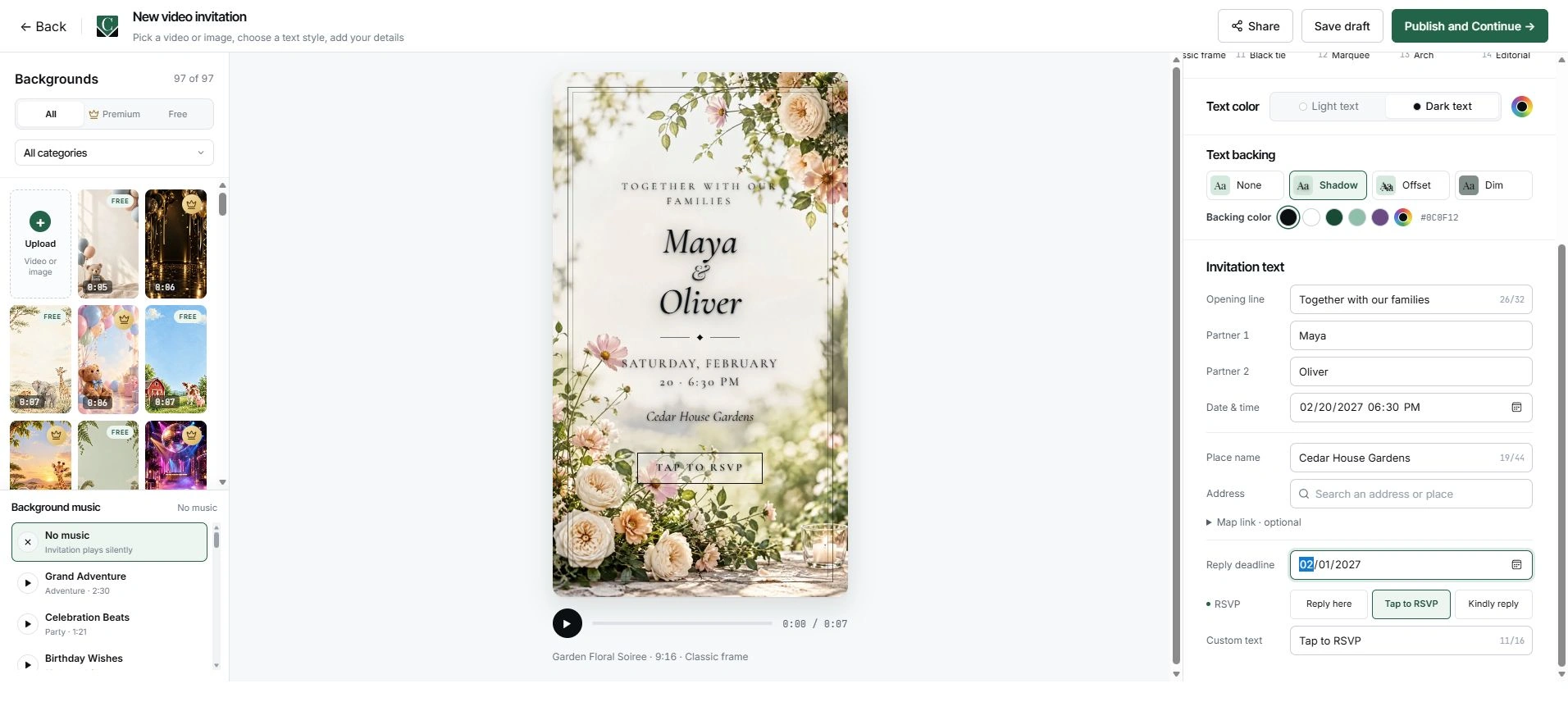
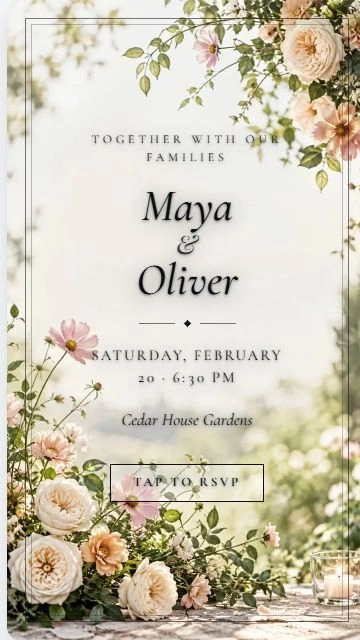
The real editor screenshot below uses Garden Floral Soiree, video CFV-040, with the Classic frame text style. Both selections were labeled Free when reviewed on October 11, 2026. Maya and Oliver, the date, and Cedar House Gardens are fictional preview details, not a published wedding.
What stays free, and what is optional?
| Choice or function | Cost category |
|---|---|
| Video labeled Free | Free design choice |
| Text style labeled Free | Free design choice |
| Invitation creation with Free assets, guest RSVP collection, and the host dashboard | Free core workflow |
| Video labeled Premium | Optional paid design extra |
| Text overlay labeled Premium | Optional paid design extra |
Premium styling can provide a different visual finish if you prefer that look. Review the current price shown before purchasing. You can keep the invitation and RSVP workflow fully free by staying with Free assets; a basic Free text style is not automatically a paid overlay.
Step 3: Check the preview and wedding wording
Make the names, date, time, and venue easy to read at a narrow screen width. Your desktop editor view is useful for entering details, but it is not the only way guests will see the invitation.
The actual portrait preview on the right shows Maya and Oliver's fictional wedding, Saturday, February 20, 2027, at 6:30 PM, at Cedar House Gardens. The opening line is “Together with our families.” It uses the Free Garden Floral Soiree video and Free Classic frame style.
Check long names and venue lines for crowding. Keep decorative wording short enough that the event facts remain readable over the animation. Choose clear contrast and a simpler style when needed. W3C's contrast guidance explains why text needs sufficient contrast against its background; no measured contrast audit was performed for this preview.
Check what is actually visible, not only what you entered. The editor contains a February 1 reply deadline in this example, but the captured Classic frame preview does not display that deadline. Include the reply-by instruction in your accompanying message, or select and verify a presentation that shows it.
Put essential details in readable text in the accompanying message as well as the visual invitation where possible. W3C's guidance on images of text explains why real text is more flexible than words embedded in an image. This is a readability recommendation, not a claim that the invitation has passed an accessibility conformance audit.
A written deadline tells guests when you want their answers. It does not, by itself, prove that the RSVP form closes automatically. Arrange your reply date around your own venue and planning requirements, then review outstanding replies when that date arrives.
Step 4: Publish and share the correct invitation link
Finish the invitation before sending the guest link. Save draft keeps the design as a draft; it does not activate a guest invitation link.
- Review the facts and confirm that both design selections are Free.
- Choose Publish and Continue when the invitation is ready. Complete any setup or account instructions shown; successful publication returns to the event dashboard.
- Reopen the published design through Edit invitation, then choose Share.
- In Share invitation, use Invitation link and Copy link. A supported phone may show a native share sheet instead.
- Open that exact guest link separately and confirm the wedding details and RSVP route before sending it.
Use the editor's invitation link for the video invitation. The dashboard's Copy RSVP Link provides a different address. Do not substitute your editor or host-dashboard address for the guest link.
The response action belongs to the browser invitation page. It is not an interactive button embedded in a downloaded MP4. If you send a picture or video preview through a messaging app, include the actual invitation link in the message so guests have somewhere to reply.
These instructions describe the current interface. This guide's fictional wedding remains an unsaved editor preview; it was not published or used to store a guest reply.
Step 5: Understand how guests RSVP
Guests open the invitation page and reply without creating an account. They do not choose a password, but the form still needs information to identify the response.
The public guest demo shows name, email, and attendance fields. Phone is optional. Additional questions depend on the event settings and attendance choice, so check your own form before describing what it asks.
- Open the guest invitation link and read the wedding details.
- Find the RSVP action and select whether you can attend.
- Enter the requested identifying information.
- Complete any relevant optional questions that appear.
- Submit and look for confirmation.
A plus-one question is not a substitute for your invitation wording. Make the permitted party clear in the message, and check the relevant event settings before sharing.
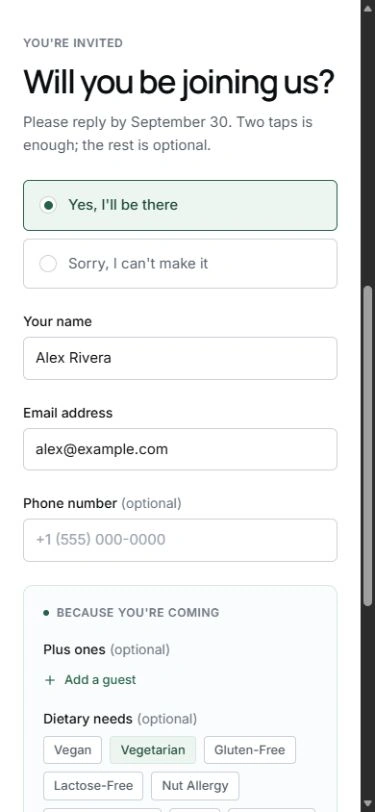
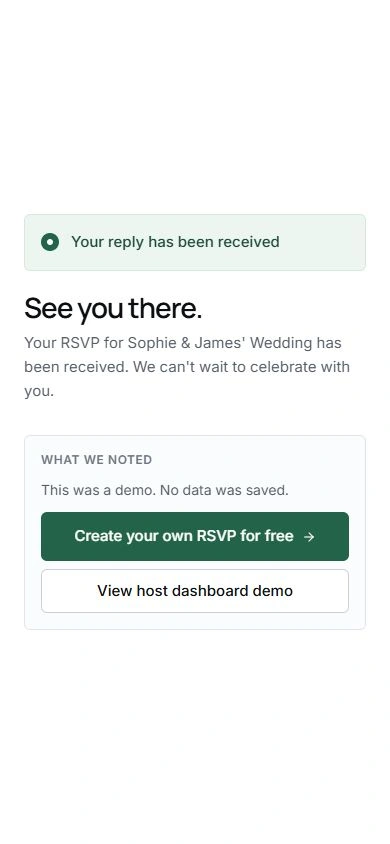
Confirmation is the final screen to look for, but this screenshot is a demo. The captured confirmation explicitly states that no data was saved. It demonstrates the form transition, not a stored wedding RSVP.
You can explore the public guest demo without creating a real guest record. When inviting your own guests, send your published event's actual link, never this demo address.
Step 6: Turn replies into a wedding headcount
Read the dashboard labels before using a total for seating or catering. A confirmed response and an attending person are not always the same unit when additional guests are included.
The read-only dashboard demo displays separate example data. It is not connected to the public guest form or the fictional wedding preview in this guide.
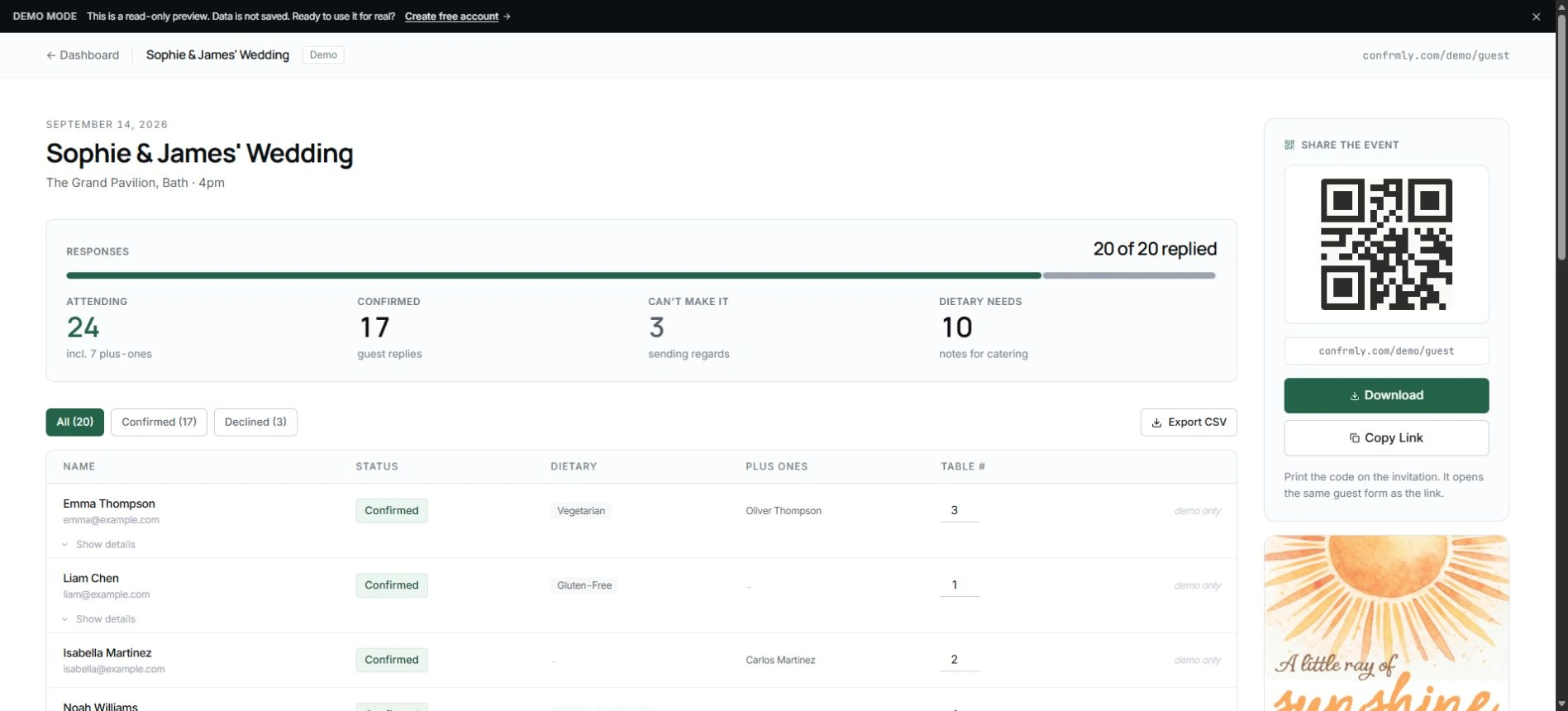
This fixture contains 20 replies: 17 confirmed and 3 declined. Its 17 confirmed respondents plus 7 additional guests produce 24 attending people. That does not mean 24 separate confirmed responses, and these numbers are not customer results.
For your wedding, reconcile who is attending with your intended guest list. Check additional-guest entries and any relevant notes, then use the appropriate attending-person count for practical planning. Do not infer a final meal order from a response total alone.
The guide to tracking RSVPs explains the broader organization process. For missing replies near your deadline, use a personal reminder; the guest follow-up guide provides wording without turning your reply deadline into an assumed automatic cutoff.
Two original wedding invitation wording examples
Use short invitation text for the main facts, then an accompanying message for details that do not fit clearly in the design. Both examples below use fictional people, venues, and dates. Replace every example detail and bracketed placeholder before sharing.
Ceremony and reception at one venue
Together with our families
Maya & Oliver
Invite you to celebrate our wedding
Saturday, February 20, 2027, at 6:30 PM
Cedar House Gardens
Reception to follow at the same venue
Accompanying message:
Alex and Sam, we'd love you to join us at Cedar House Gardens, 123 Example Lane. Please arrive by 6:15 PM for our 6:30 PM ceremony. Open [your invitation link] for the invitation and RSVP by February 1 for both of you.
This version names the invited pair and makes the arrival instruction separate from the ceremony start time. Its reply date remains visible in the message even if the selected visual style does not show it.
Ceremony and reception at different venues
Join us for the wedding of
Jordan & Casey
Saturday, May 15, 2027
Ceremony at 4:00 PM, Birch Hall
Reception at 6:00 PM, Meadow Room
Accompanying message:
Taylor, you're invited with one guest. Our ceremony is at Birch Hall, 456 Example Avenue; the reception begins at Meadow Room, 789 Example Street, at 6:00 PM. Please open [your invitation link] and RSVP by April 20, including whether your guest will attend.
This version gives each location its own time and explains the permitted additional guest. It is sample communication advice, not a demonstration of separate ceremony and reception attendance controls in the app.
Make your final check before sending
Open the exact guest invitation link, then check the wedding facts and the reply route together. A successful preview alone does not verify that you copied the right published address.
- Both design choices still say Free if you want no paid styling extras.
- Names, date, start time, venue, and any separate reception details are correct.
- The accompanying message identifies the invited people and permitted party.
- The reply-by date is visible somewhere guests will read it.
- The link opens your invitation, not a demo or host editor.
- The response form matches the questions and additional-guest arrangement you intend.
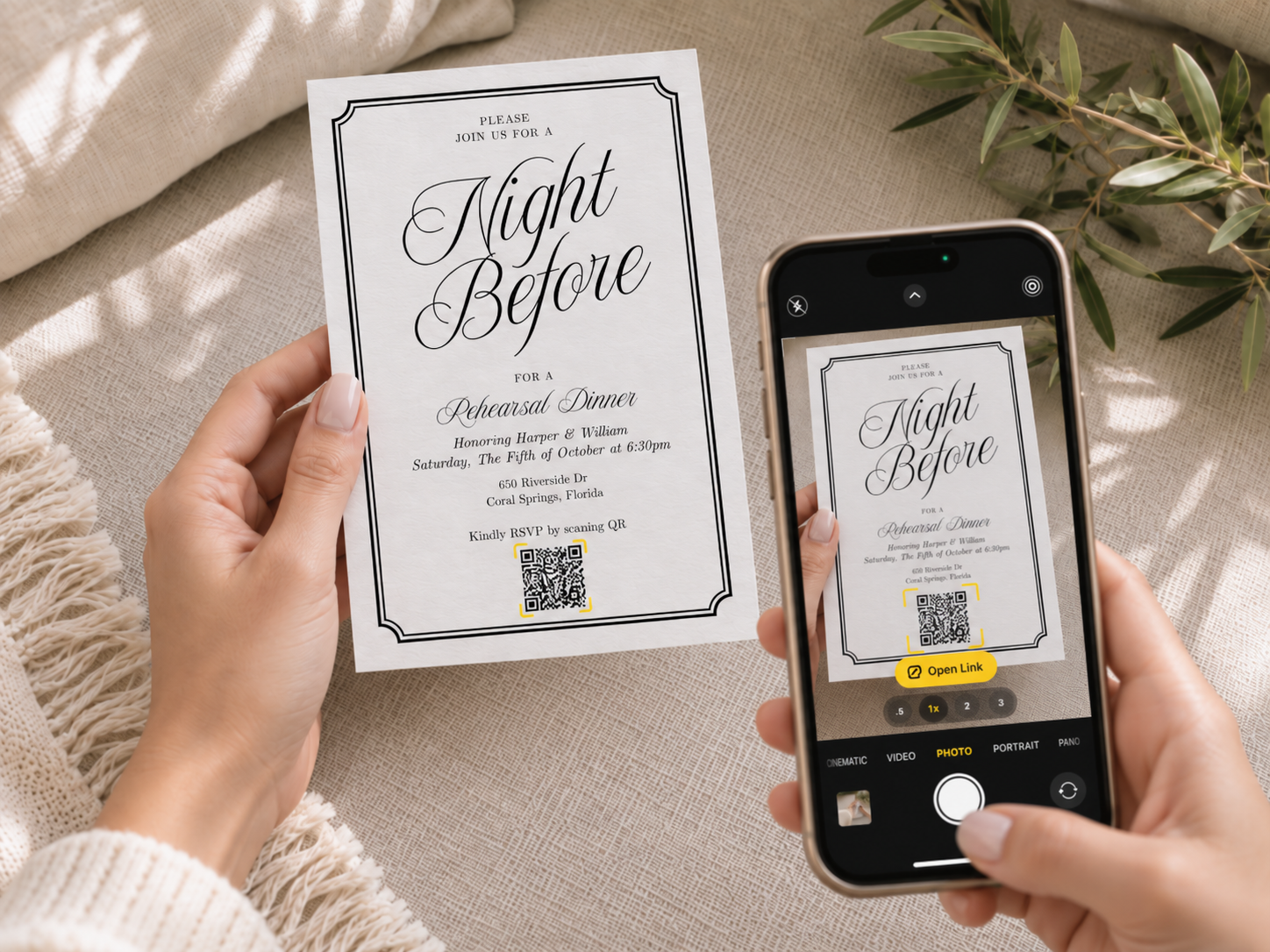
If you prefer a printed invitation with an online reply route, you can keep that format instead. The Canva RSVP QR-code guide covers that alternative; you do not have to switch every wedding invitation to video.
For a video invitation, begin with a Free combination in the invitation catalog. Keep the wording clear, verify the guest link, and use the dashboard's attending-person count thoughtfully. Optional Premium videos and Premium text overlays remain a style choice, not a requirement for free RSVP collection.
Editorial ownership: Confrmly publishes this guide about its own product. The editor, catalog, and public demos were reviewed on October 11, 2026. Screenshots contain fictional preview details or separate demonstration data; they do not show a published sample wedding, a stored reply for that wedding, or physical-phone testing. Publisher information is available on the About page; product corrections can be sent through the contact page.
Ready to send invites?
Create your event on Confrmly
Set up your RSVP page, share the link with guests, and keep their responses in one place.
Get Started Free