Wedding RSVP QR Code Not Scanning? Find the Problem Before Printing
Fix an RSVP QR code that will not scan. Check the destination, image, spacing and printed proof before ordering your wedding invitations.
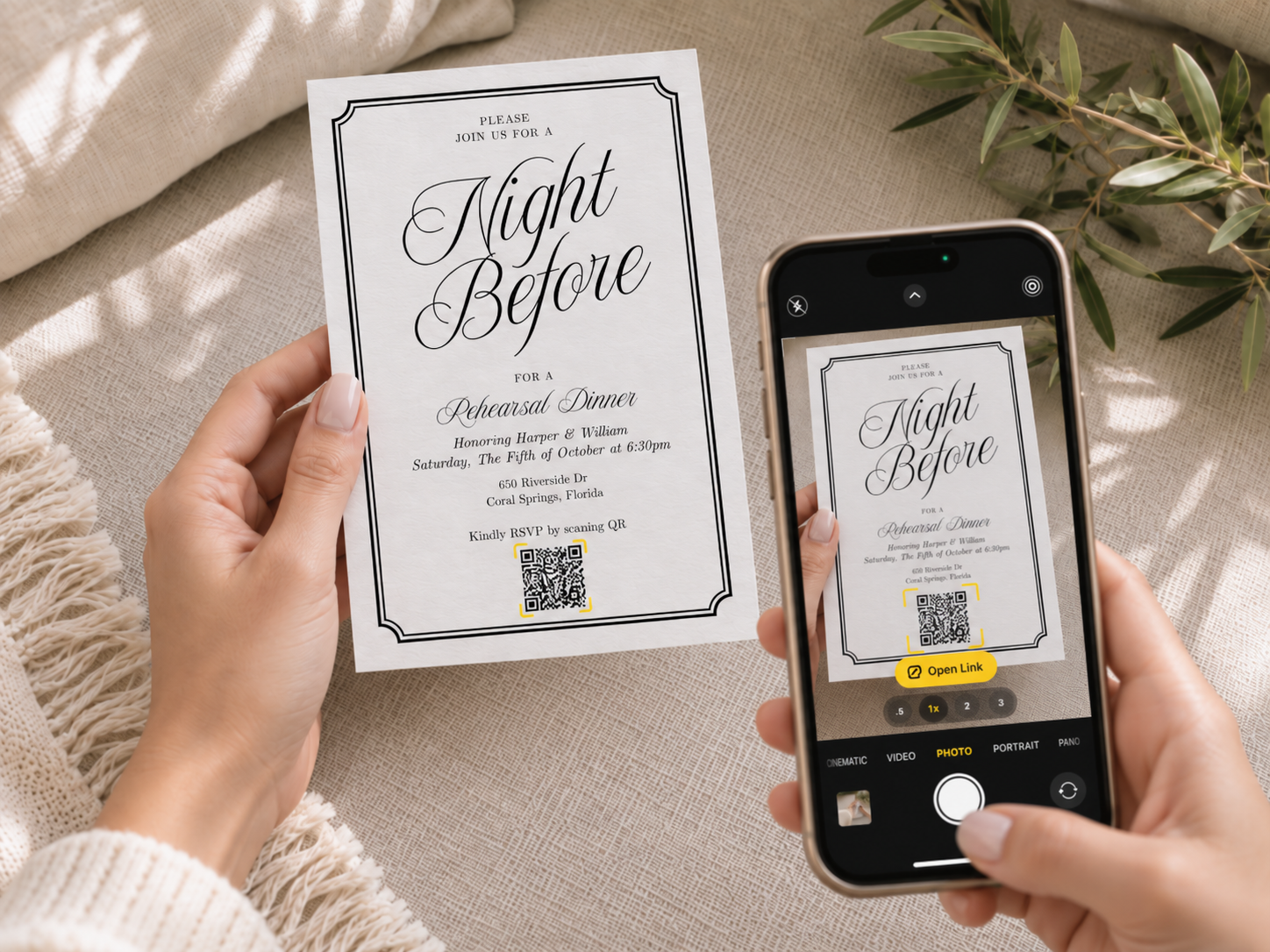
Example of scanning an invitation with a phone camera. Open the detected link, then check that it leads to the correct guest RSVP page.
Your invitation looks finished, but the RSVP QR code will not open. Before redesigning the whole card, find out which part is failing: the link, the QR image, the exported invitation, or the printed copy.
Try the checks below in order. Change one thing at a time so you can tell what helped. Keep the original QR download and the final invitation file separate while testing.
1. Check the link without scanning anything
Copy the guest RSVP link from your event and open it directly in a browser. Use the link intended for guests, not the address of your host dashboard.
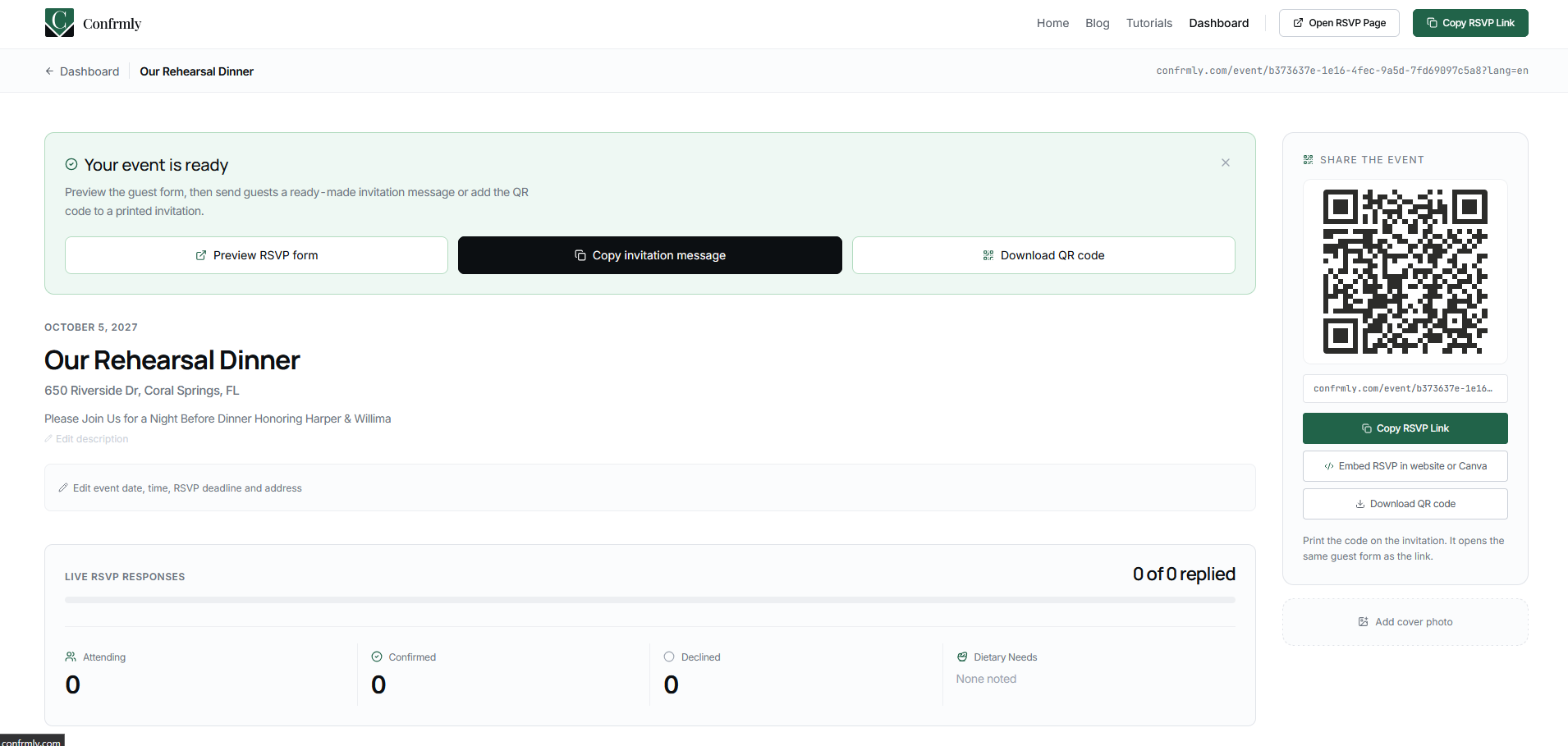
Does the correct event appear? Check the names, date, time, and location. If the link is wrong or the page cannot be reached, making the printed code bigger will not fix it. First find the correct working guest link.
If the page opens on your own device, try it in a private browser window. This helps catch a link that only works because you are signed in. Avoid posting private host links or guest information when asking for help.
Need the initial setup steps? Follow our wedding invitation QR code guide.
2. Compare the original QR image with the invitation
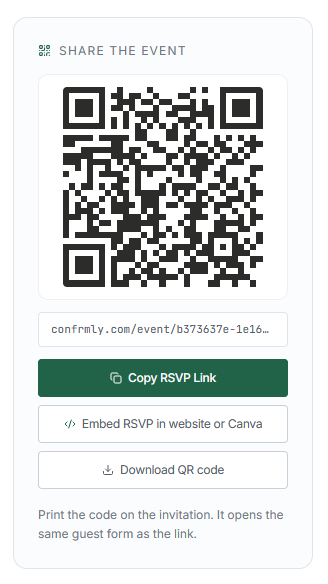
Use Download QR code to obtain the original image. Do not use a screenshot of this panel as the QR artwork for your invitation.
Open the QR image you downloaded for the event on a computer or another device, then scan it with your phone. Next, scan the code in the exported invitation file.
If the original works but the invitation does not, focus on what changed during design or export. The image might have been stretched, cropped, compressed, or made too small.
If you only have one phone, opening the guest link directly checks the destination, but does not test scanning the code. Borrow another device or use a printed proof for the scan check.
- The direct RSVP link does not open: Correct guest URL, connection, and event availability
- The link works but the original QR image does not scan: A fresh QR download and the full image border
- The original scans but the exported invitation does not: Resizing, cropping, background, and export quality
- The exported file scans but the paper copy does not: Actual print size, sharpness, paper finish, and lighting
- The QR opens the wrong event: Replace the code with one for the correct event
- The page opens but no RSVP appears in the list: Complete the response form and check for confirmation
3. Restore the clear border
A QR code needs an empty border around all four sides. DENSO WAVE calls this the quiet zone and specifies a width of four small QR squares, called modules. Keep that space clear of text, artwork, and decorative frames. Source: DENSO WAVE
Start again with the downloaded image if you cropped away its border. Keep the code square, with dark marks on a plain light background. Do not remove parts of the pattern to make it match the invitation.
The goal is not to squeeze the code into the last available corner. Give it enough room to remain clear in the finished print, including its border.
4. Inspect the actual export, not only the design editor
The file you send to the printer is the one that matters. Open that exact file and check whether the code still looks sharp. Make sure no element overlaps it and that it stays inside the printable area.
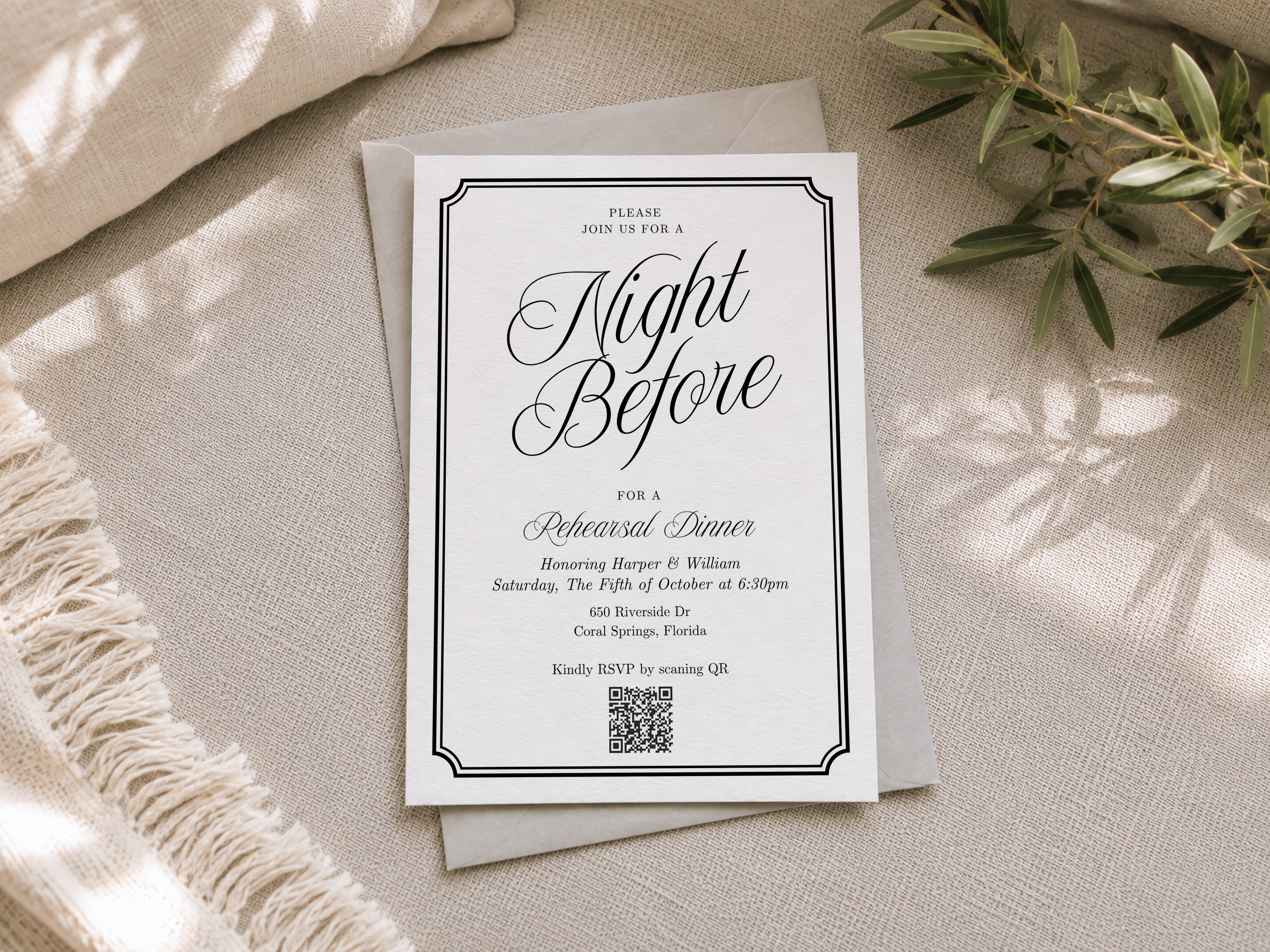
If the invitation has several versions, label the final file clearly. It is easy to fix a code in the editor and accidentally order from an older export. Keep the event link with your final-file notes so you can check the destination again without guessing.
For a Canva design, our QR upload tutorial covers the design workflow. Use this checklist afterward to diagnose a failure.
5. Print one proof at the size guests will receive
Do not order the full batch based only on a successful screen scan. Print one copy at the intended size and check your printer settings have not reduced the entire invitation unexpectedly.
Scan the proof in ordinary indoor light. If possible, ask someone with a different phone to try too. Let them find the code and follow the instructions without coaching them through it.
If the paper version fails, try increasing the code size, restoring its border, improving print quality, or moving it away from a fold or reflective area. Test again after each change. No single size can guarantee every code will work on every paper, printer, and phone.
6. Finish a test RSVP
Opening the event page is only half the check. On a test event, submit a clearly fictional response and confirm it appears in the host's guest list. That checks the journey beyond scanning.
A scan is not an RSVP. Someone might open the page and leave without submitting the form. Do not count scans, page visits, or sent invitations as confirmed attendees. In Confrmly, use the recorded guest responses to check attendance.
If the form reports an error, record the error text and device type. Contact support without sending passwords, login codes, or a full guest list.
7. Give guests a backup
Place a clear deadline and a readable route to respond beside the QR code. Use your actual event RSVP link, not just the homepage of an RSVP service. If your URL is too long for the design, you can also offer a contact method that you are willing to monitor.
Example wording, with placeholders to replace:
Please RSVP by [date]. Scan the code or visit [your event RSVP link].
For a website invitation, a clickable RSVP link is easier to use on the same phone than a code that needs scanning. Test the published link as well as any printed QR version.
Quick questions
The code opens a page. Does that mean it works?
Check that it is the right event and that a test guest can complete the form. A successful scan alone does not prove the whole RSVP process works.
Should I create a new event to fix a blurry code?
Not as your first step. If the guest link is correct, start with a fresh QR download and check the invitation export. A new event could leave already printed invitations pointing to the old one.
Can I fix a wrong QR code after printing?
Do not assume the printed pattern can be changed remotely. If it encodes the wrong destination, you may need a corrected insert, replacement print, or a direct message with the right link. Test the replacement before sharing it.
What if I cannot scan the proof reliably?
Hold the print order. Improve the design or print conditions and repeat the test. It is easier to correct one proof than a full box of invitations.
Ready for the final check?
Keep one working event link, one clean QR download, and one tested final invitation file. With a Confrmly RSVP tracker, your printed code and digital guest link can lead to the same response page. Test that complete journey before your invitations leave your hands.
Ready to send invites?
Create your event on Confrmly
Set up your RSVP page, share the link with guests, and keep their responses in one place.
Get Started Free