Best Way to Track RSVPs for Printed and Digital Invitations
The simplest way to track RSVPs is one online response page connected to a live guest list. Learn how to share it with a QR code on printed invitations or a clickable link in digital and Canva website invitations.
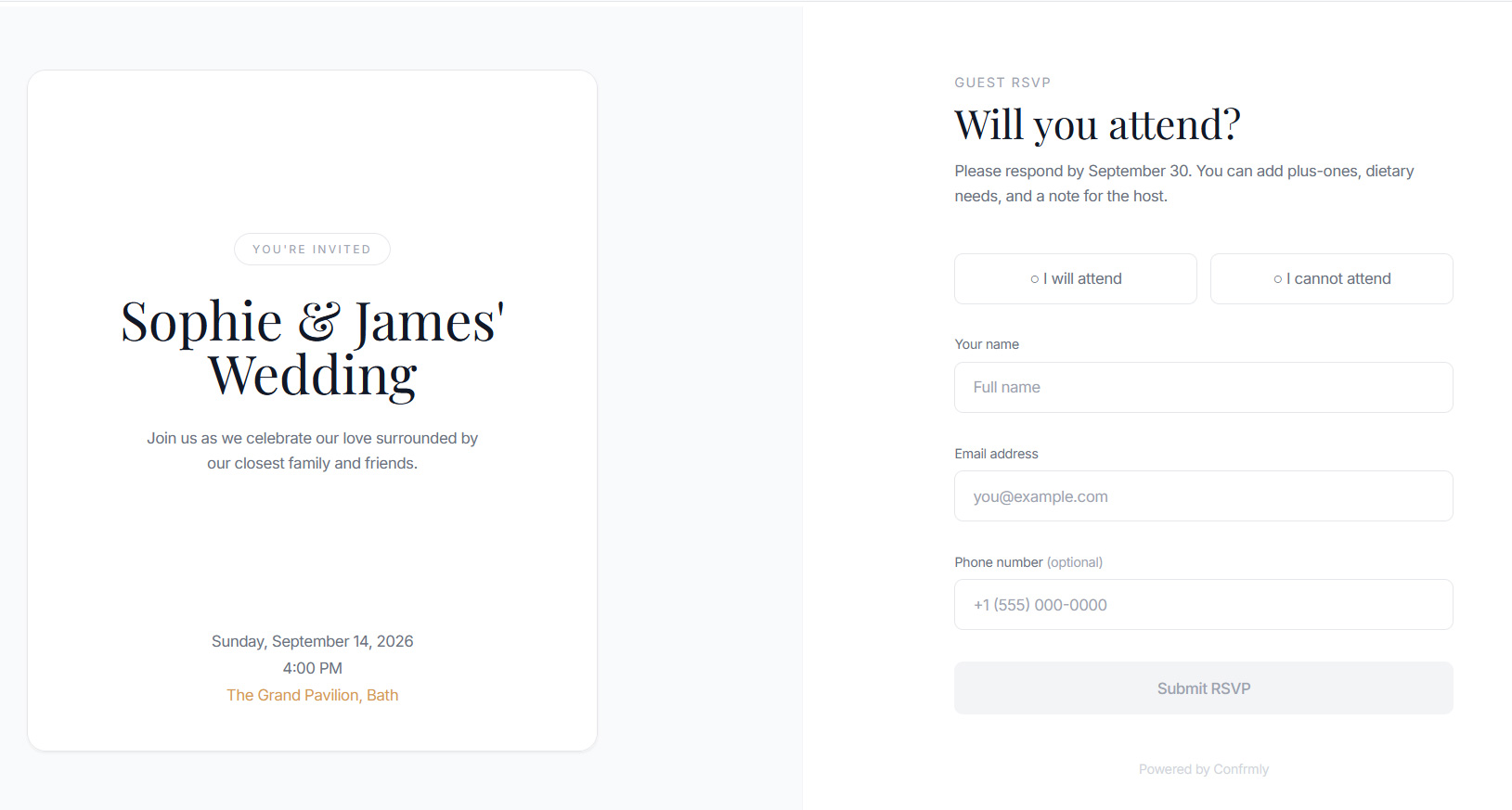
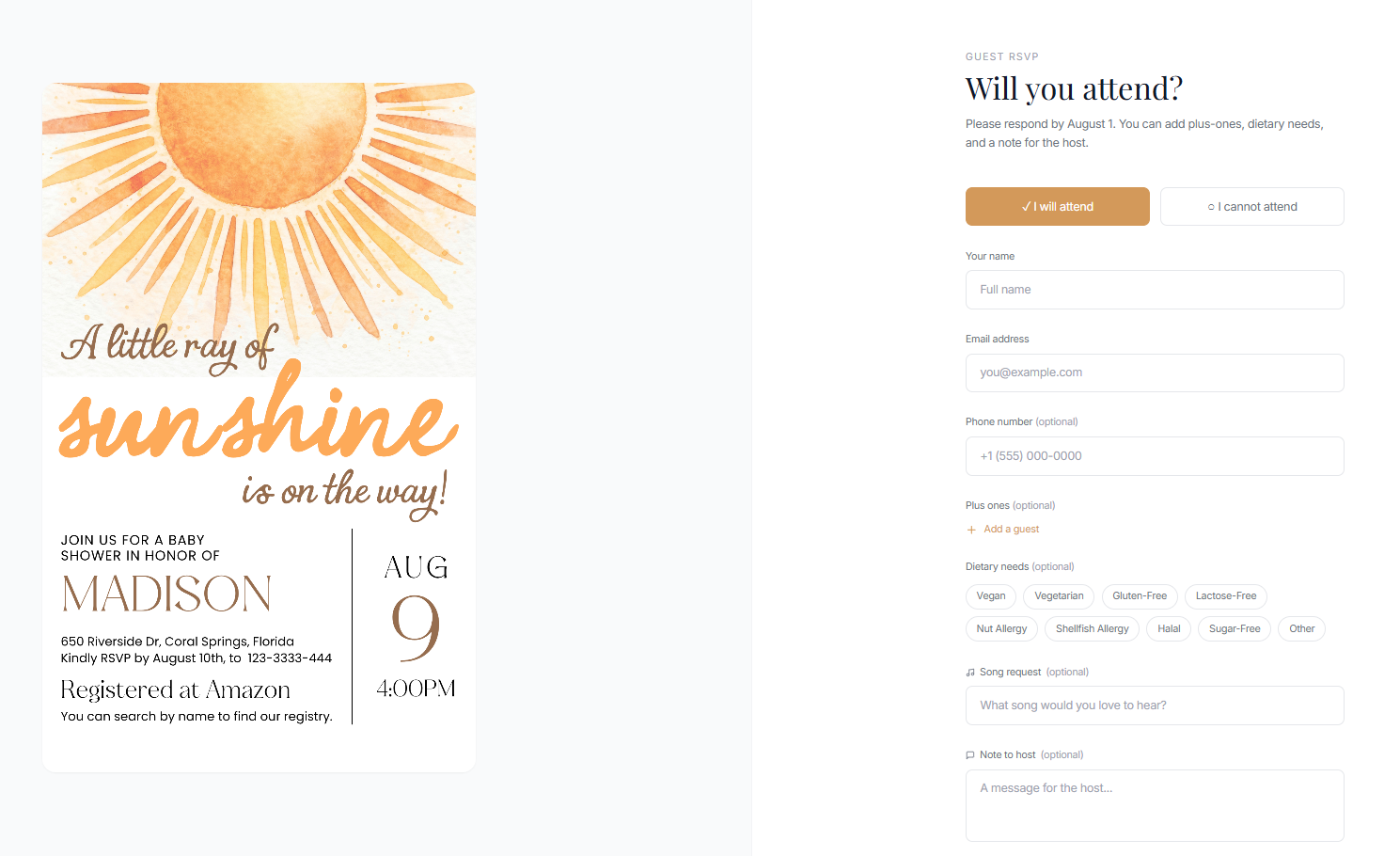
The best way to track RSVPs is to send every guest to one mobile-friendly response page connected to a live guest list. Instead of collecting replies across texts, emails and spreadsheets, you share one RSVP link and let guests enter their own attendance, plus-one and dietary details.
That same link works for both printed and digital invitations. Add its QR code to a card you plan to print, or turn it into a clickable button in an online invitation or Canva website.
Why one RSVP link is easier to track
Messages feel simple at first, but replies quickly become scattered. One person responds by text, another emails a dietary request, and someone else changes the name of their plus-one later. A spreadsheet still leaves the host responsible for copying every update.
A dedicated RSVP page gives guests one clear place to respond and gives the host one dashboard to review. With Confrmly, guests do not need to create an account or download an app.
- Attendance updates appear in one guest list.
- Plus-one names stay attached to the correct guest.
- Dietary needs are ready to share with the caterer.
- Table numbers and notes remain part of the same record.
- The full list can be exported when the venue needs it.
How to add a QR code to a printed invitation
For an invitation that will be printed, a QR code connects the paper design to your online RSVP form. Guests scan it with their phone camera and go directly to the response page.
- Create your event. Add the date, location, RSVP deadline and the questions you need answered.
- Open the guest view. Submit a test response so you know exactly what guests will see.
- Download the event QR code. Confrmly generates it from the same shareable RSVP link.
- Place it in the invitation design. Add it to the main invitation, details card or separate RSVP insert.
- Add a short instruction. For example: “Please RSVP by September 1. Scan the QR code or visit the link below.”
- Print and scan a proof. Test the final size with more than one phone before ordering the full batch.
Keep the code dark on a light background, leave empty space around it and avoid placing it over a photo or pattern. A printed code around 1 inch or 2.5 centimeters wide is a practical starting point, but the final proof test is what matters.
It is also helpful to print a short version of the RSVP link below the code. That gives guests a backup if their camera cannot scan it.
How to add a clickable RSVP link to a digital invitation
If the invitation will be sent as a webpage, email or interactive document, use the same Confrmly event URL as a clickable call to action. Clear button text such as RSVP Here, Confirm Attendance or Reply by September 1 is easier to understand than displaying a long raw URL.
- Copy the RSVP link from the Confrmly event dashboard.
- Select the button, text or element in your invitation editor.
- Add the Confrmly URL as its destination.
- Publish or export using a format that preserves links.
- Open the final invitation on both phone and desktop and test the link.
A PNG or JPG is a flat image, so text inside it cannot remain clickable. If you send the invitation as an image, include a QR code or place the clickable RSVP link in the accompanying message.
Using the RSVP link in a Canva website invitation
A Canva website can work well as an online event invitation because guests open it in a browser and can interact with linked text or buttons. Add a clear RSVP button to the invitation design, connect it to the Confrmly event URL, and publish the design as a website.
Before sharing, open the published website rather than relying only on the editor preview. Tap the RSVP button on a phone, confirm that it opens the correct event, and complete one test response. If you also provide a downloadable invitation image, add the QR code to that version because links inside JPG and PNG files are not interactive.
Canva and Confrmly are independent products. Confrmly simply provides the external RSVP page and guest-tracking link that you can connect to your invitation.
What the host sees after guests respond
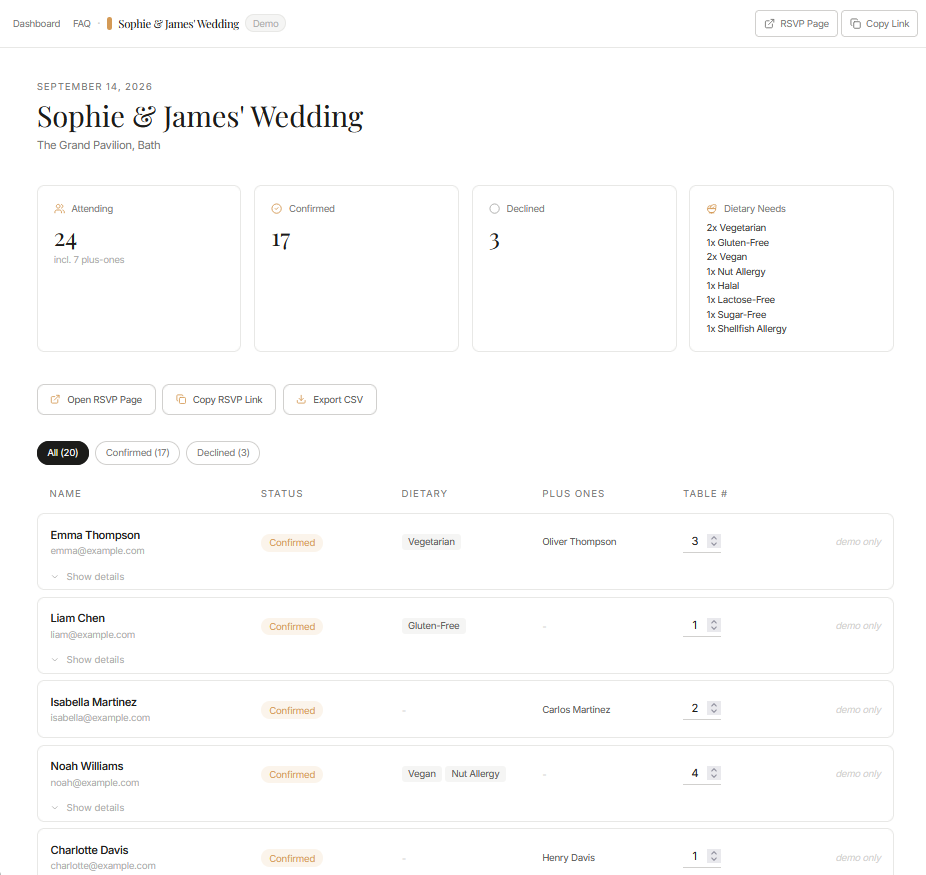
Each response is organized in the host dashboard. You can review confirmed and declined guests, dietary needs, plus-ones and table assignments without rebuilding the list by hand.
Invitation wording you can copy
For a printed invitation
Please RSVP by September 1. Scan the QR code or visit our RSVP link.
For a digital invitation
We hope you can join us. Click here to RSVP by September 1.
For a Canva website invitation
Ready to celebrate with us? Select RSVP Here to confirm your attendance.
A simple RSVP workflow from invitation to final guest list
- Create one event and one RSVP page.
- Use the QR code for anything printed.
- Use the clickable event link for websites and interactive digital invitations.
- Test every printed and digital version before sending.
- Review all responses in the same dashboard.
You can create a free Confrmly event and use either sharing method immediately. Explore the free RSVP tracker, compare RSVP tracking methods, or follow the wedding invitation QR code guide for print-specific advice.
If you are still choosing a service, compare online wedding RSVP tools by whether you need a simple response link or a full wedding website.
Ready to send invites?
Create your event on Confrmly
Set up your RSVP page, share the link with guests, and keep their responses in one place.
Get Started Free