How to Add an RSVP QR Code to a Shutterfly Wedding Invitation
Add a free Confrmly RSVP QR code to a wedding invitation in Canva or another design tool, then upload the finished design to Shutterfly and track replies.
Your printed wedding invitation can have a clean online RSVP path without turning the invitation into a spreadsheet project. The important detail is that the QR code should be part of the finished invitation artwork before you upload it to Shutterfly.
Create a free Confrmly event, download the event QR code, add it to the invitation in Canva or another desktop or phone design tool, export the completed card and upload that finished design to Shutterfly. Guest replies then appear in one Confrmly dashboard.
This is not a native Shutterfly integration. The QR code sends each guest to a separate Confrmly RSVP page for your event.
Before you start
- Create the event in Confrmly and set the RSVP deadline.
- Choose the final invitation size before designing the artwork.
- Use Canva, a desktop editor or a phone design app that can place the QR-code PNG on the invitation.
- Keep a plain, light square area for the QR code inside the print-safe area.
- Save the event's RSVP link as a readable backup.
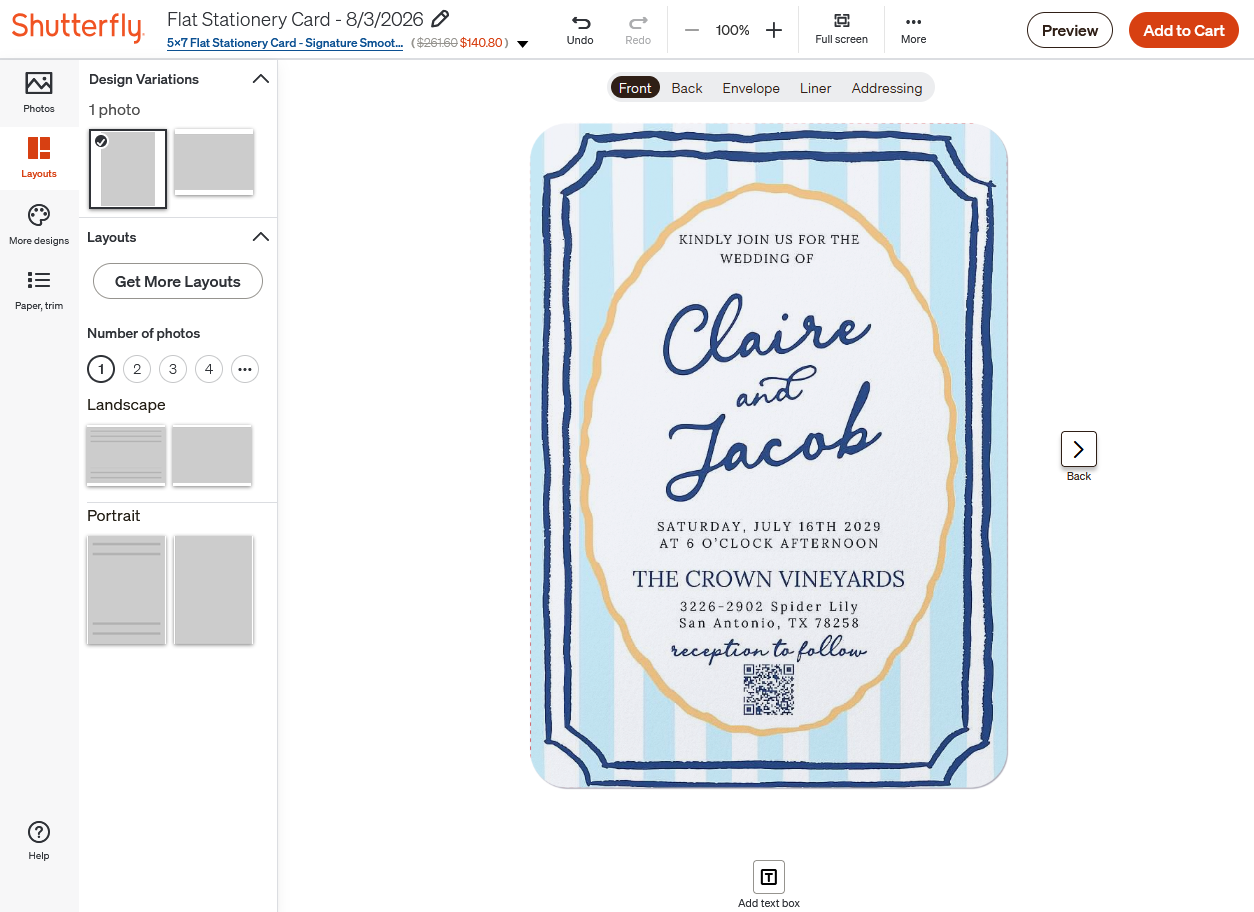
Shutterfly currently offers an Upload Your Own Design wedding invitation and says the design should be ready to upload as a JPEG or a similar image file. This guide uses that finished-artwork workflow. Shutterfly can position the uploaded card artwork and provide product options, but this guide does not depend on its interface accepting a separate QR-code image.
Step 1: Create an RSVP page guests can use
Set up your free Confrmly event with your date, venue, deadline and guest questions. For a wedding, collect attendance, plus-one information, dietary needs and any note you want guests to leave. Use the guest preview and submit a test response yourself. Guests do not need an account or an app to RSVP.
Step 2: Download the QR code for this event
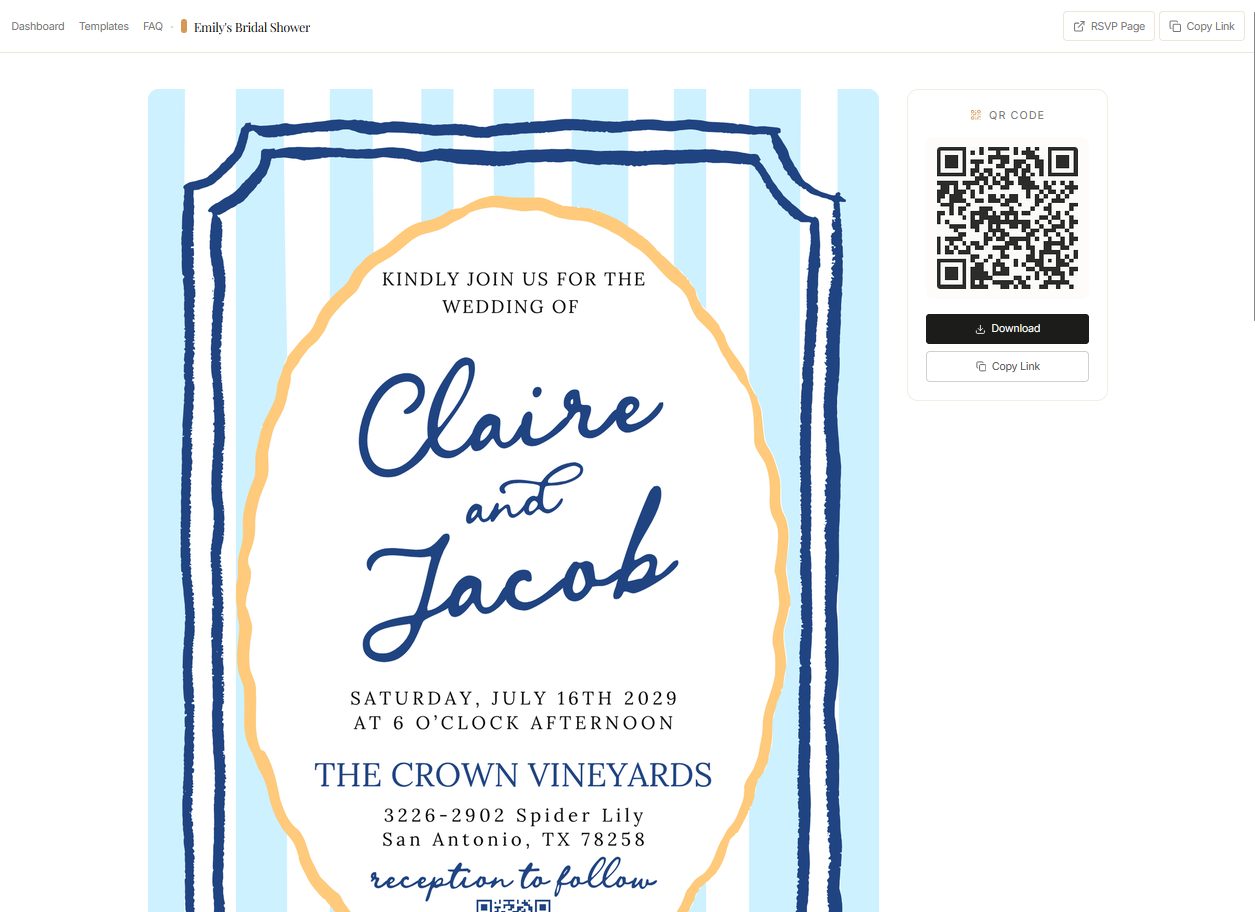
In your Confrmly host event, download the QR code. It is tied to the RSVP page for that specific celebration, so do not substitute a code from another event. Keep the RSVP URL available as a printed fallback if space allows. The full workflow is also explained in our QR code RSVP guide for wedding invitations.
Step 3: Add the QR code before opening Shutterfly
Open the invitation in Canva or another design tool. Upload the Confrmly QR-code PNG and place it on the front, back, details card or RSVP insert. The best position is the one with enough plain space and no important artwork behind the code.
If you use Canva, follow the Confrmly guide for adding an RSVP QR code to a Canva invitation. The same principle works in desktop and phone tools: import the PNG, keep it square, add the RSVP deadline and leave a readable fallback URL when space allows.
Keep the code dark on a light solid background and away from foil, floral patterns or fine artwork. Do not crop, stretch or recolor it. Start with a code at least 1 inch or 2.5 cm wide and leave clear space around all four sides.
Kindly RSVP by June 1. Scan the QR code or visit your RSVP link.
Replace the sample deadline before you order. If possible, print the RSVP URL near the code in a readable size.
Step 4: Export one completed invitation file
Export the whole invitation as a high-resolution image sized for the Shutterfly product you selected. Do not upload the invitation background and QR code as separate elements. The QR code, wording and artwork should already be flattened into one completed card file.
Before uploading, open the exported image at full size and scan the code from the screen. This is only a preliminary check, but it catches a wrong event link or a damaged code before ordering.
Step 5: Upload the finished artwork to Shutterfly
Choose Shutterfly's Upload Your Own Design wedding invitation or another compatible flat stationery product. Upload the completed invitation image, fit it inside the product area and check that no important wording or QR quiet space crosses the trim boundary.
Step 6: Test a proof before the full order
Use a sample or a final-size printed proof to scan the actual QR code, not only the on-screen preview. Try it on more than one phone from normal reading distance. Confirm the correct event page opens, the guest form works on mobile and the test reply appears in Confrmly. If scanning fails, return to the original Canva or design-tool file, increase the code size, restore a plain border and upload a corrected finished image.
Step 7: Let Confrmly organize the responses
Once invitations are in guests' hands, they scan the code and reply on your event page. Confrmly keeps attendance, plus-ones and dietary needs together, then lets you export the guest list for catering, seating or follow-ups. See how the free wedding RSVP tracker works.
Frequently asked questions
Can I add a separate QR-code image inside Shutterfly?
Do not depend on that workflow. Add the QR code to the invitation in Canva or another design app first, then upload one completed image through an Upload Your Own Design product.
Can I use Canva to prepare the Shutterfly file?
Yes. Canva can be used to place the Confrmly QR-code PNG, RSVP deadline and fallback link before exporting the completed invitation.
Does Shutterfly receive the RSVP responses in this setup?
No. The code opens your Confrmly RSVP page. Responses are collected and tracked in the Confrmly host dashboard.
Should the QR code replace a traditional RSVP card?
It can, but it does not have to. The QR code can sit on a matching RSVP card, details card or on the reverse of the main invitation. Choose the location that leaves enough clear room to scan it.
Create your free RSVP QR code
Set up the event, test the guest experience and download the QR code before you finalize the invitation in Canva or another design tool. Upload the completed artwork to Shutterfly only after the QR code scans correctly.
Sources
Want a broader comparison before choosing your setup? Read the guide to the best way to track RSVPs.
Ready to send invites?
Create your event on Confrmly
Set up your RSVP page, share the link with guests, and keep their responses in one place.
Get Started Free