How to Add an RSVP QR Code to a VistaPrint Invitation
Add a free Confrmly RSVP QR code to a VistaPrint invitation, test the proof and keep every guest response organized in one dashboard.
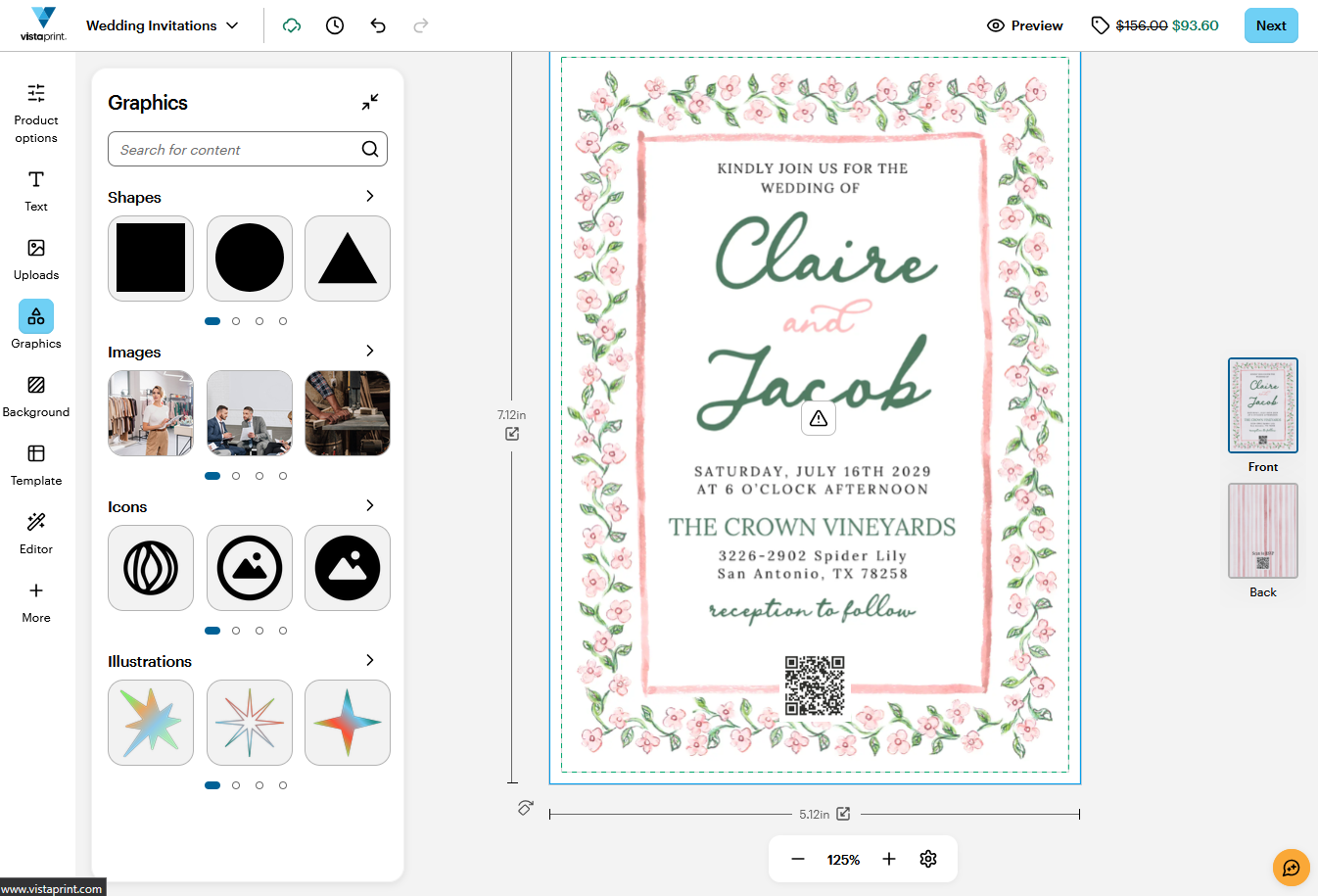
You can keep the invitation printed and still collect RSVPs online. Create a free Confrmly RSVP page, download its QR code, add it to your VistaPrint design, then test a proof before placing the full order. Every guest response stays in one dashboard instead of being scattered across texts and emails.
This is not a VistaPrint integration. The QR code simply opens your Confrmly RSVP page after a guest scans it.
Before you start
- Create your Confrmly event and decide on an RSVP deadline.
- Choose a VistaPrint invitation template or prepare your own artwork.
- Leave a clear, light area for the QR code on the back, a details card or an RSVP insert.
- Keep the shareable RSVP link as a readable backup.
VistaPrint currently offers invitation templates, an online design studio and the option to upload your own design. The exact controls vary by template and product size, so check the product's safe area before you finalize the QR-code placement.
Step 1: Build the RSVP page first
Create the event in Confrmly before you edit the invitation. Add the date, location, RSVP deadline and the guest questions that matter. For a wedding, that may include attendance, plus-ones, dietary needs and a note for the host. Open the guest view and submit a test response. Guests do not need a Confrmly account or an app.
Step 2: Download the event-specific QR code
From the Confrmly host event, download the QR code for that event. Do not reuse a code from a previous celebration. Keep the RSVP link as a fallback in case a guest has trouble scanning the printed card.
Step 3: Make space for the code in VistaPrint
Choose a VistaPrint template with an editable back, a matching details card or enough empty space for a square code. If you are uploading your own design, place the code inside the product's safe area rather than near the trim edge. The back of the invitation is often the cleanest location because it leaves the front focused on the event.
The QR code is positioned on the back, away from the trim edge and inside the editor's marked safe area. Use the safe-area outline as a placement guide, then verify the proof for the exact product you order.
Step 4: Upload the QR code without changing it
Upload the PNG from Confrmly and keep it square. Do not crop, stretch, recolor or place it over a photograph, textured background or foil detail. Start with a code at least 1 inch or 2.5 cm wide, with clear space around all four sides.
Please RSVP by June 1. Scan the QR code or visit your RSVP link.
Replace the sample deadline with the real one. Add the full RSVP URL in readable text whenever your design has room.
Step 5: Download a proof and test it
VistaPrint says a free proof can be downloaded during the design process, and selected 5 x 7 products allow a minimum order quantity of one. Use either route to test the actual code before you commit to the full order. Scan the proof with more than one phone at normal reading distance. Confirm it opens the right RSVP page, that the form feels easy on mobile and that the test response appears in your Confrmly dashboard.
If scanning fails, make the code larger, move it to a solid light background and restore the clear border around it.
Step 6: Track the guest list in Confrmly
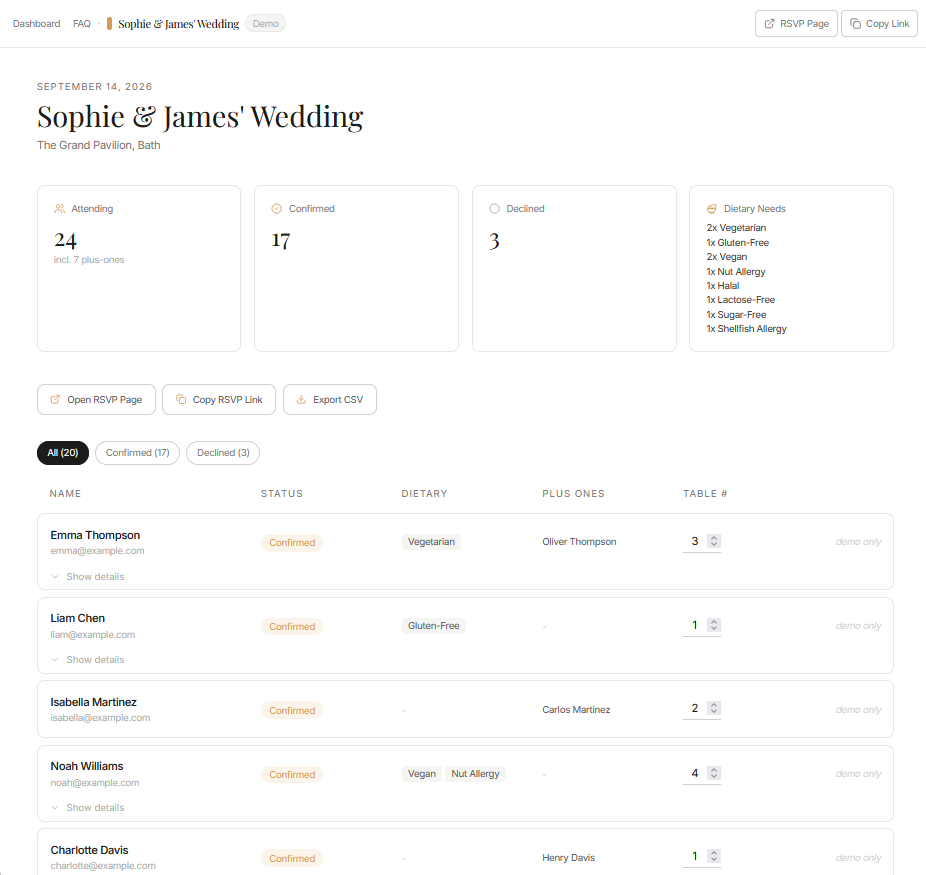
After invitations are mailed, guests scan the code and submit their answers on your event page. Confrmly keeps attendance, plus-ones and dietary needs in one place. Export the guest list for seating, catering or follow-ups when planning is underway.
Frequently asked questions
Can I add a QR code to any VistaPrint invitation?
The exact editing options vary by product and template. Choose a design that lets you add an image, or upload your own invitation artwork with the QR code already placed inside the VistaPrint safe area.
Does VistaPrint collect the RSVPs?
No. This guide uses Confrmly as the separate RSVP destination. The QR code opens your Confrmly event page, where guest responses appear in your host dashboard.
Do I need a separate RSVP card?
No. A details card or the back of the invitation can work well. A separate RSVP insert is useful when the main invitation has no clear area for a code.
Create your free RSVP QR code
Create your event first, test the guest experience, then add its QR code to the VistaPrint invitation you are preparing.
CTA: Create your free RSVP page
Related Confrmly guides
Sources
Ready to send invites?
Create your event on Confrmly
Set up your RSVP page, share the link with guests, and keep their responses in one place.
Get Started Free